
Capture enough detail for a useful call-back
Ask for the work site, the request and the customer’s preferred date on the form. Review the submitted lead to clarify scope and access before you offer a price.
Turn acceptance into a booking
Send the quote for the confirmed work. When the customer accepts, create the job, check the carried site and scope and assign an available time. A preferred date on an enquiry is still a request.
Check what reaches the lead before offering a booking
Open Sales, then Forms. Map the contact and work questions to the lead and label a requested date as preferred. Use the preview to check the fields before publishing. With lead access, open All Leads and check the source and next action.
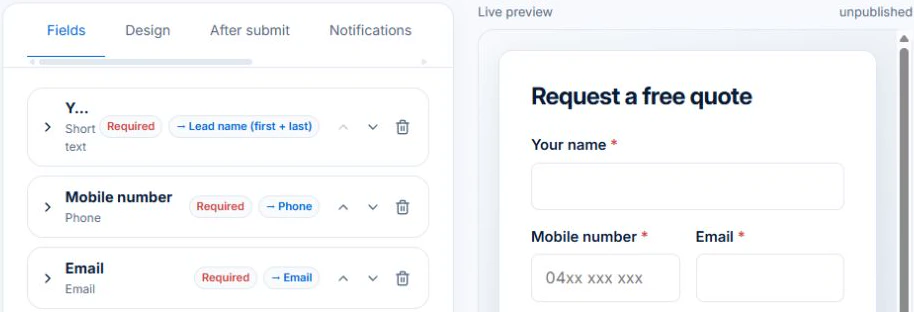
Assign someone to review the request, clarify the scope and prepare the quote. Test the published form with an authorised sample enquiry before using it on your site. Confirm availability after acceptance, then check the job, date and crew before telling the customer it is booked.

Ask for the information that changes your next step
Start with the customer’s name, contact method, site or service area and a short description of the work. Ask whether it is a new enquiry or a request about an existing job. Include a preferred date only if someone will review it.
Keep the form short enough to complete on a phone. A useful optional photo or a question that appears for a particular service can save a follow-up call; a long list of compulsory questions can make a simple enquiry difficult.
- How can we contact you?
- Where is the work?
- What would you like done?
- Is this about an existing job?
- Is there a preferred date or access constraint?
Give every enquiry a next action and an owner
Decide who reviews new requests and what happens when they are away. An acknowledgement tells the customer the request arrived. It should also set an honest expectation about the next response.
Example wording: “Thanks for your enquiry. We’ll review the details and contact you to confirm the scope and availability. Your preferred date is not booked yet.” Adapt the response time to what your team can actually deliver.
Move from a request to an agreed job
Clarify missing detail before quoting or allocating a crew. If the work needs an inspection first, record that as the next action. Keep the quote and the customer’s response connected to the enquiry.
Once the scope and appointment are agreed, create or convert the appropriate job record and check its site, contact and crew assignment. Send a confirmation that describes what was agreed. A form submission alone should not be treated as proof that the team is available.
When checking whether the agreed work can fit, use AxiomBlue’s job scheduling software to preview people and times against existing bookings. Review the proposal and confirm the customer arrangement before treating the preferred date as booked.
On Professional, follow the walkthrough to create a pending job from an accepted quote. The workflow carries accepted work into a job record and alerts the owner; choosing a suitable crew and confirming the appointment remain separate steps.
Test the entire path from a phone
Collect enquiries through a hosted form or website entry point, then follow the lead through quoting and scheduling to a confirmed job.
Submit sample enquiries with complete and missing details. Check the notification, assigned follow-up and customer-facing wording. This process helps organise work requests, but it should not be described as a general-purpose shared email inbox.
Put it to work
Your practical checklist
- Submit a test enquiry from a phone.
- Check where it appears and who owns the next action.
- Confirm that preferred dates are described as requests.
- Trace the enquiry into a quote and job.
- Inspect the appointment confirmation.
See the records in Axiom Blue
Try the workflow with a familiar job.
Features and usage limits vary by plan. Review the tools relevant to your process before choosing your setup.