
Allocate the day you really have
Use the work location, duration, current bookings and travel to preview assignments. Review who can do the work and where a gap remains. With Professional, check skills and approved leave too.
Investigate the unassigned job
Look at the constraint before moving another customer or adding a worker. Compare the revised plan with the original and apply only the assignments you have checked.
Choose the jobs and constraints for the proposal
Open Calendar & Schedule → Auto Schedule, select the jobs that need an assignment and choose the first planning day. Check job locations, expected durations and existing bookings before using Simulate.
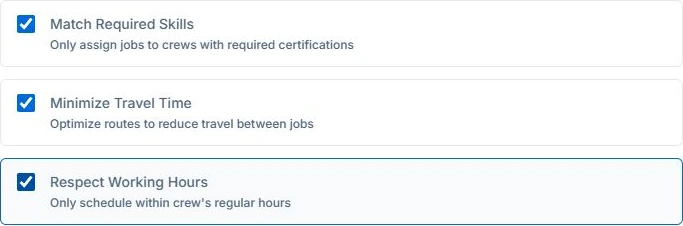
The example selects a fault find, a portable-appliance test and a power-point installation. Match Required Skills, Minimize Travel Time and Respect Working Hours are selected. Professional crew planning uses recorded skills and approved leave; a recorded skill is not independent licence verification.
Explore AxiomBlue job scheduling software for the wider planning workflow.
Review the dates as well as the assigned count
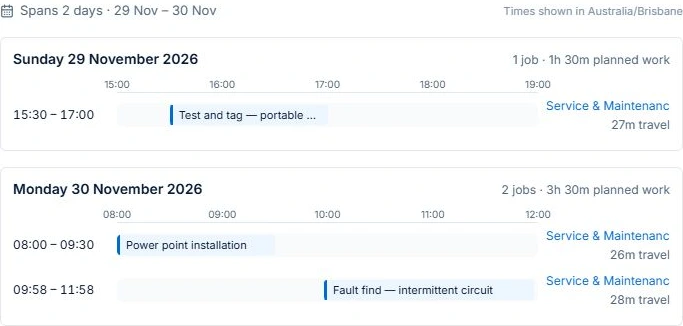
The three-job preview proposes Service & Maintenance for all three tasks across two days, with zero jobs left unassigned. Review each date, start and finish time, crew and travel estimate before deciding whether the proposal fits.
The first planning day was 5 November, but the proposed assignments are 29–30 November. An assigned count does not establish that the dates meet the appointment you need. Resolve that before applying the plan or confirming a booking.
| Job | Proposed date and time | Crew | Estimated travel |
|---|---|---|---|
| Test and tag — portable appliances | 29 November, 15:30–17:00 | Service & Maintenance | 27 minutes |
| Power point installation | 30 November, 08:00–09:30 | Service & Maintenance | 26 minutes |
| Fault find — intermittent circuit | 30 November, 09:58–11:58 | Service & Maintenance | 28 minutes |
Keep the scope, site and work records together with AxiomBlue job management so the team can review the job behind each assignment.
Test an unavailable person and a new call-out
Change the availability or add urgent work to the example. Preview the affected work again and inspect what changed. A proposal with less estimated travel may still conflict with an appointment you need to preserve.
Use Dispatch Map to review jobs and crew runs. Professional route optimisation proposes a stop order; check access and materials, then confirm any changed bookings.
Use the calendar for time and the map for location
Start by checking availability and assigning suitable people. Then look at the geography. Two short jobs on opposite sides of the service area may be a worse fit than a longer job near the crew’s existing work.
Axiom Blue’s crew calendar and Dispatch Map support these different views of the day. The map shows job locations and crew routes; it should not be interpreted as a promise of live vehicle tracking. Route optimisation is a Professional feature, and the resulting plan still needs your review.
Review an urgent request before changing assignments
Check the location, estimated duration and any required skill. Use the calendar to see existing commitments and the map to check travel.
Preview the revised assignments, then check work that did not fit and any visits that would move. Apply the change after review and confirm affected appointments separately.
Choose allocation depth for the operation you run
A sole trader may need duration and individual availability, while a multi-person operation may require recorded skills, crews and approved leave. Test both the ordinary assignment and unplaced work on the plan you intend to use.
Keep job inputs and scheduling constraints current, review each proposed change, and communicate the agreed plan from the office.
Check the plan and the total for your team
Auto Schedule supports individual planning on core plans. Professional is needed for crew management, skills, approved leave and route optimisation. Free is one user; use paid access or the demo for the multi-person scenario.
Axiom Blue monthly first-seat prices are $29 AUD on Basic and $59 on Professional, excluding GST. Additional seats use graduated discounts: 10% off for seat two, 20% for seat three, through to 50% off from seat six. Paid plans have no job-volume cap. Check your actual team and billing interval on the pricing page; SMS credits and payment-processing fees are separate.
Free is a one-user core-workflow test: 10 jobs per week, 10 quotes and 10 invoices per month, 25 customers and 25 leads, with no file uploads. Use the demo to inspect Professional capabilities before choosing a plan.
Common questions
Assignment and control questions
What should I do with a job the proposal cannot place?
Read the reason and inspect duration, availability and required skills. Correct an inaccurate record or revise the planning constraints, then preview again. Do not treat unplaced work as a confirmed booking.
Does Auto Schedule confirm the customer appointment?
You review the proposal and apply the plan. Check access, materials and customer availability and communicate the agreed booking separately.
Can Free check crew skills and approved leave?
No. Those records and crew management require Professional. Free supports a limited one-user core workflow; individual planning is distinct from the Professional crew scenario.
Put it to work
Your practical checklist
- Job sites, durations and bookings are current.
- Professional skills and leave are checked where required.
- Each proposed assignment and warning has been reviewed.
- Unplaced and urgent work tested.
- Applied bookings and customer confirmation checked.
See the records in Axiom Blue
Inspect a proposed allocation
Open Calendar & Schedule, choose Auto Schedule and select the jobs to review. The crew example requires Professional; Free supports limited single-user core planning.