
A customer who still needs to decide
The Quote Follow-Up Reminder waits three days after the quote is sent. A quote still marked Sent or Viewed can qualify for the customer email and the owner notification. Check the customer’s address and read the reminder as they will receive it.
What happens if they accept today?
Test a second quote that changes to Accepted during the wait. Check the status condition immediately before the email action and inspect the test result. Activate the workflow only once the cases produce the outcomes you expect.
Check the quote again before the reminder goes out
In Workflows → Templates, open Quote Follow-Up Reminder. Check the delay and status rule. The preset labels the final step Notify Salesperson, but its default recipients are the business owners. Use Test in the editor to preview the actions.
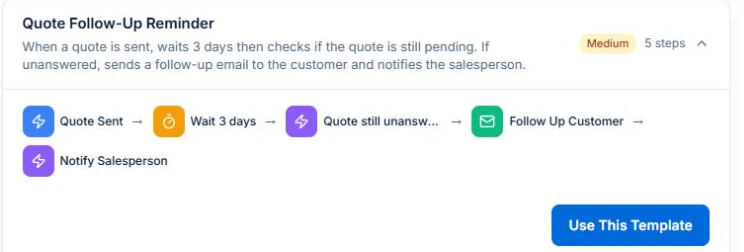
Include a pending quote and a quote accepted during the wait in your checks. Check expiry separately because the preset’s rule checks status. After a controlled active run, review execution history and assign someone to handle replies.
Pick a task with a clear beginning and ending
A follow-up on an unanswered quote is easier to define than “automate our sales”. Write down the event that starts the process and what makes further contact unnecessary.
Use one owner for the workflow. They should know what it does, how to review its runs and how to stop it if the business process changes. A workflow with nobody responsible is difficult to maintain.
If the task is collecting feedback after completed work, follow the steps to configure an honest Google review request on Professional. Check the customer email address, review link and neutral wording before activating the workflow.
Describe the rules before building the steps
Decide which records qualify, how long to wait, which channel to use and what information the message needs. Include the situations where the action should not happen.
For quote follow-up, check the current quote status before contacting the customer. For invoice reminders, use the outstanding balance and relevant exceptions as workflow conditions.
- Trigger: what starts the workflow?
- Conditions: which records qualify now?
- Timing: when should the action happen?
- Action: what should it do, and for whom?
- Stop or exception: when should a person take over?
Test more than the happy path
Use sample records to check a normal run, a record that should be excluded and a record that changes during the wait. Check the recipient, message content and whether the action happens more than once.
If the process sends SMS, include credit requirements and permissions in the review. If it sends an email, inspect the actual wording and link. Do not enable messages against live customers just to see what happens.
Keep the workflow connected to the real process
Build Professional workflows from the visual editor’s templates, triggers, conditions and actions, then test them against your business process before enabling.
After rollout, review failures and unexpected outcomes. If a staff member changes how a job is closed or an invoice is handled, check whether the workflow needs to change too. Reliable automation needs an accurate record to act on.
Give a quote follow-up a clear next step
Example message: “Hi [name], checking whether you had any questions about quote [number] for [work]. You can review the scope at [link]. If the timing or work has changed, reply and we’ll help with the next step. Thanks, [business].”
Use the message only when the quote is still relevant and awaiting a response. Test accepted, declined and changed records before enabling the process. A customer reply may need a person to take over; the wording should make that easy.
Put it to work
Your practical checklist
- Choose one repeat task and name its owner.
- Write the start, action and stop rules.
- Review the available template and conditions.
- Test included, excluded and changed records.
- Enable only after reviewing the intended outcome.
See the records in Axiom Blue
Try the workflow with a familiar job.
Features and usage limits vary by plan. Review the tools relevant to your process before choosing your setup.