
Check what acceptance creates
Configure the Quote Accepted preset in Professional and select the team notification recipient. Test it with a quote for a recognisable customer, site and scope.
Inspect the pending job before scheduling
Open the result and compare the carried details with the accepted document. Confirm availability and access before giving the customer a booking time.
What we will set up
- Professional workflow access
- Accepted quote converted through Create Job
- Pending job with quoted details
- Customer told timing still needs arranging
- Owner schedules and confirms the appointment
Workflows → Templates
Check the trigger, pending job and two notifications
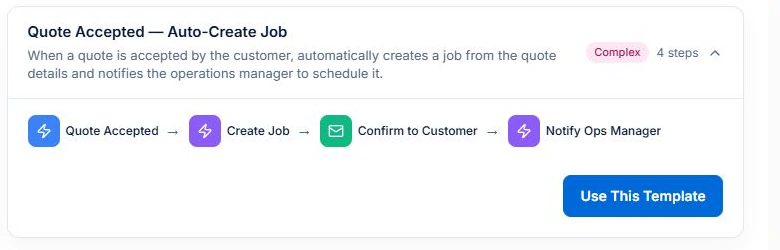
With workflow management access, open Workflows, then Templates. Expand Quote Accepted — Auto-Create Job and check the Quote Accepted trigger, Create Job action, customer confirmation and operations notification.
Use Test in the workflow editor to preview the site, scope, items and notification recipients. A controlled active run can create the job and send messages. Confirm the crew and appointment from the job after acceptance.
Concept
A preset supplies connected steps and field mappings to review.
Advantage
Starting with the current preset avoids recreating the process from an incomplete blank-canvas recipe.
Quote Accepted → Create Job
Check acceptance and the quoted work
Check that the trigger is Quote Accepted and that Create Job uses the quote conversion action. Review the accepted quote’s customer, site, scope and line items.
Use a sample quote to confirm what reaches the new job. Check the handover when the quote already has a job; do not assume repeated events should create another.
Concept
Conversion carries the quote details into a job record.
Advantage
The office has a work record to plan without recreating the agreed scope.
Confirm to Customer email
Keep the customer message accurate
The customer email says the accepted quote has created a job and the team will be in touch to schedule the work. Check the resolved email address and wording.
Do not call the appointment confirmed or supply a time unless a suitable slot and assignee have actually been agreed.
Concept
The message acknowledges acceptance without promising an unallocated appointment.
Advantage
Customers know what is settled and what happens next.
Notify Ops Manager → Calendar & Schedule
Allocate the pending job and confirm the time
The owner notification links to the job and says it needs scheduling. Check job duration, location and existing bookings. On Professional, check crew skills and approved leave.
Review the proposed assignment or schedule the work yourself. Agree the appointment with the customer and confirm the revised record with the team.
Concept
Job creation supplies the work; scheduling supplies its time and people.
Advantage
The booking reflects capacity and requirements rather than quote acceptance alone.
Workflow test and execution history
Test the outcome before activating
Use Test in the workflow editor to preview the job and messages. For a controlled active run, use a sample quote and a customer address you control. The active run can create a job and send email.
Preview missing customer email and repeat acceptance. After a controlled active run, check execution history and the scheduling queue for the pending job.
Concept
Check the selected records, action results and failures, then assign an owner to review future runs.
Advantage
Resolve test failures before enabling the workflow for customer work.
This workflow prepares accepted work for scheduling. A confirmed appointment still needs an available person or crew, a workable time and customer agreement.
Assign someone to review pending jobs and confirm appointments, so the accepted work keeps moving.
Try it in Axiom Blue
Inspect the quote-to-job handover
Explore the workflow, then configure it for your business on Professional. Free covers limited core jobs, quotes and invoices.