
Job scheduling / Individual work and Professional crews

Find room for the next job in the schedule you already have

Enter where the work is and how long it should take. AxiomBlue proposes people and times against existing bookings and travel, so you can see what fits and what still needs a slot.

Free and Basic schedule people individually. Professional adds crews, skills, leave and recurring job series. Free usage limits apply. Compare plans →

AxiomBlue · Five jobs · one reviewed proposal
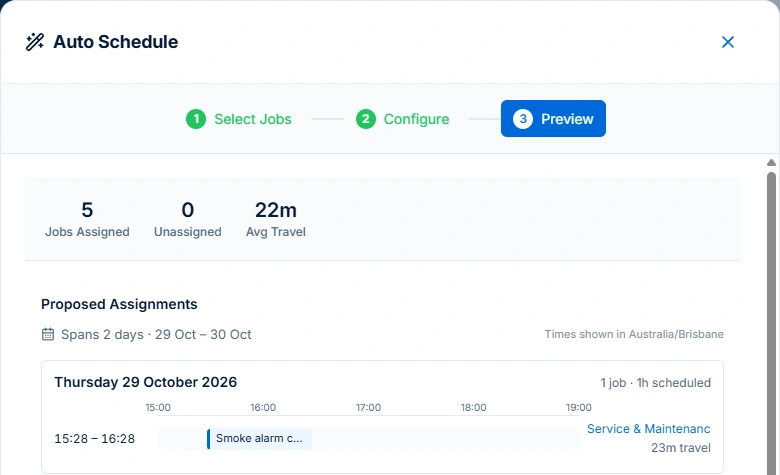
Auto Schedule preview for five Volt Force Electrical sample jobs across 29–30 October, showing five assignments, zero unassigned and estimated travel.
Review five proposed assignments across two days, including travel and unplaced work, before applying the schedule.

See the work that fits

Enter job sites and expected durations, then preview proposed times, people and travel. Review later bookings as well as the new one. An unassigned job is visible work for the dispatcher to resolve.

Change the day before you commit it

Move a booking in the preview and see which other assignments it affects. Check the worker and time before applying the changes. Free and Basic schedule individuals; Professional adds crew planning, skills and approved leave.

Five unassigned jobs / Current demo example

See what fits before you assign the jobs

Start with the five electrical jobs in the demo. Check each job's duration and address, then preview the schedule against working hours and existing bookings. The sample puts five jobs across two days and shows the estimated travel and unassigned count.

Check the proposed people, times and any jobs still waiting for a slot. If the plan fits, apply it and confirm the appointment separately. If a job needs a specific crew skill, check the recorded skills and approved leave on Professional before running the preview again.

Try it in AxiomBlue
Jobs & Crews → Calendar & Schedule → Auto Schedule

Current public demo example, captured 28 October 2026. The proposal was not applied. Open Auto Schedule in the demo calendar to explore; available sample work changes over time.

  1. 01

    Choose the jobs that need a place

    Open Calendar & Schedule → Auto Schedule and choose the unassigned jobs, checking duration, location and required skills.

  2. 02

    Check the constraints

    Review working hours and the travel option. Professional crew planning can also match recorded skills and approved leave. Keep those inputs current and check materials, access and customer arrangements separately.

  3. 03

    Simulate and inspect the proposal

    Check the dates, people, start and finish times, available travel estimates, warnings and any work still unassigned. A multi-day proposal is not the same as fitting every job into today.

  4. 04

    Apply only a plan you have reviewed

    If the proposal fits, apply it and check the calendar. Otherwise revisit the inputs and simulate again. Confirm the appointment with affected people; a preview alone does not book or notify a customer.

Check the inputs before trusting a slot

Choose the constraints, then inspect the result.

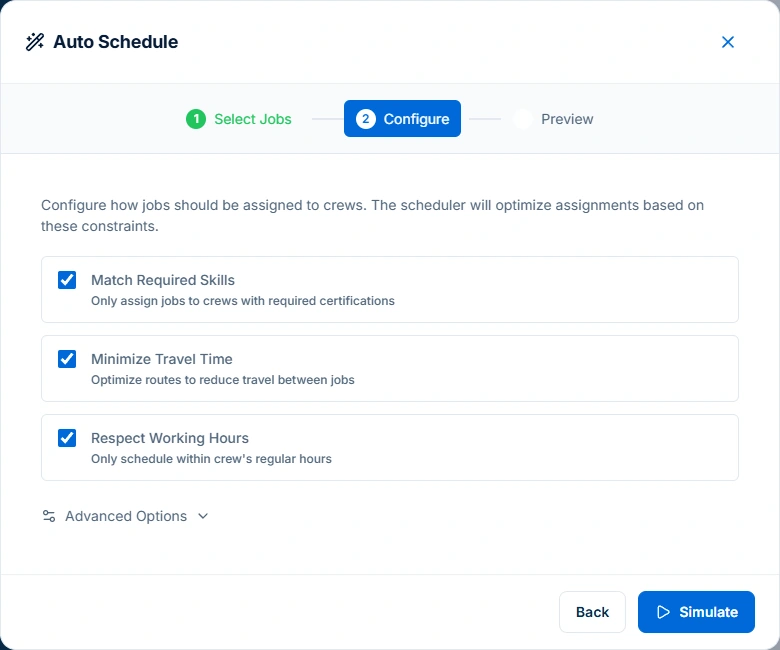
These are the settings used for the same five-job example. The preview proposed a first visit on Thursday and four more on Friday. Inspect the actual people and times rather than treating the assigned count as an appointment confirmation.

Professional crew skills and approved leave add planning constraints. A skills match uses your records; it does not independently verify a worker’s licence or the site’s readiness.

AxiomBlue · The same five jobs · scheduling constraints
Current Auto Schedule configuration with Match Required Skills, Minimize Travel Time and Respect Working Hours selected.
Choose the scheduling constraints that fit the work, including recorded skills, travel and working hours.

The decisions behind the proposal

A suitable crew. Enough time. A workable run.

A job needs more than an empty slot. Assisted scheduling uses the work and availability you have recorded to propose assignments. Choose the scheduling constraints, then check the result against what you know about the day.

Job requirements and crew skills
On Professional, skill matching compares the job’s required skills and proficiency with recorded crew skills. Keep those records current; the schedule does not independently verify licences or qualifications.
Availability and enough time
Job duration, existing bookings and working hours shape the available slots. Professional crew planning also checks members’ approved leave and their shared working window, including work spanning several days.
Travel between jobs
Enable travel minimisation to consider travel from relevant locations alongside the work already booked. Estimates depend on location and travel data; missing travel information is shown in the preview.
Priority, deadlines and warnings
Use priority and deadlines to order work, then review deadline and travel warnings when choosing the assignment.

You decide what goes on the schedule.

Review the proposed people, times and travel alongside warnings and any jobs it could not place. Apply the proposed schedule when it fits. Review a fresh proposal if the day or availability changes.

Use day, week and month views to check the wider plan. You can also assign and change jobs yourself.

When the day changes

Rain, leave or a delayed job? Rework the affected day.

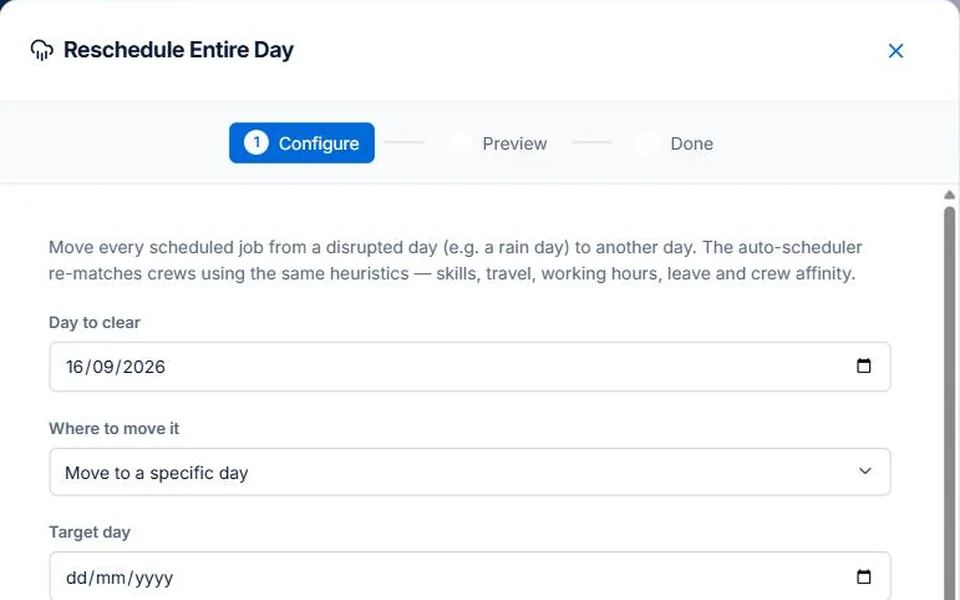
Open Reschedule Entire Day, choose the affected date and propose a specific new day or the next available date. Choose whether to keep the original crew where possible and exclude weekends.

For a rain delay, filter to jobs you have marked as weather-sensitive. Preview the affected work, apply the change and check the actual result. The reschedule result includes an undo option.

Confirm revised arrangements with affected customers and the team. Scheduling alone does not send customer messages; automated email or SMS updates need a configured Professional workflow, with SMS credits purchased separately.

Work through a moved or skipped repeat visit →
AxiomBlue · Reschedule an affected day
AxiomBlue Reschedule Entire Day configuration showing a source date and the choice of a specific new day.
Choose which work to move and where to look for its next slot. Review the preview before applying.

From your own diary to several crews

Schedule the way your business works.

Free and Basic: plan individual people

Use the job calendar and assisted scheduling to plan your own work or assign people individually. Review job duration, existing bookings, working hours and travel in the proposed schedule.

Free has usage limits. Basic suits businesses that need more capacity and uploads.

Professional: coordinate crews and repeat work

Manage crew membership, record skills and approve leave. Use those records in scheduling, and bring recurring service visits into the plan alongside one-off work.

For work spanning several days, scheduling checks the crew's availability across the job's duration. Keep visit changes connected to the recurring job series.

Compare plan inclusions, limits and pricing →

Before you plan the week

Your scheduling questions.

Want to discuss your crew or service round? Talk it through with us.

Can a sole trader use assisted scheduling?

Yes. Free and Basic schedule people individually, so you can plan your own jobs without setting up crews. Free usage limits apply. Crew management, skills, leave and recurring job series require Professional.

What does crew scheduling consider?

It uses recorded job duration, existing bookings, working hours and travel data. On Professional, crew skills and approved leave also inform assignments. Choose the constraints and review the proposal, warnings and unplaced jobs before applying it.

Does Auto Schedule keep moving jobs by itself?

No. Auto Schedule creates a proposal for you to review and apply. Review a fresh proposal if the day or availability changes. It does not keep reallocating work unattended.

Can I move a day’s work after rain?

Yes. Reschedule Entire Day lets you preview moving eligible work to a specific day or the next available date. You can filter to jobs already marked weather-sensitive, prefer the original crew and exclude weekends. Check the actual result after applying; the result includes an undo option.

Can I schedule recurring services?

Yes, on Professional. Recurring job series create individual visits that sit alongside one-off work. Check the affected visit and billing agreement when moving or skipping work.

Can the field team see the jobs on a phone?

AxiomBlue has iOS and Android apps alongside the web portal. Core job details and field actions work offline in the native apps; pending changes sync after the app reconnects. Confirm revised arrangements when connectivity returns.

See the plan before you commit

Put a working day through its paces.

Explore the live demo to inspect a schedule proposal and the controls behind it. Or start free and plan your own jobs with individual scheduling.

Crew management, skills, leave and recurring job series require Professional. Free usage limits apply. Check your plan →

  1. 01

    Choose some unassigned work

    Check durations, locations and existing bookings.

  2. 02

    Inspect the proposed schedule

    Review assignments, travel, warnings and jobs still needing a place.

  3. 03

    Test a change to the day

    Explore rescheduling and compare the plan inclusions you need.