
Record the proposed change while its scope is clear
Describe the extra work, the agreed price basis and the approval it needs. Keep it tied to the original contract so both the office and crew can tell what the change covers.
Check how much is ready to claim
Once approved, review the revised total and the amount billed earlier. Carry the eligible change into the claim and check the remaining balance before issuing it.
Check the approval and revised value on the same job
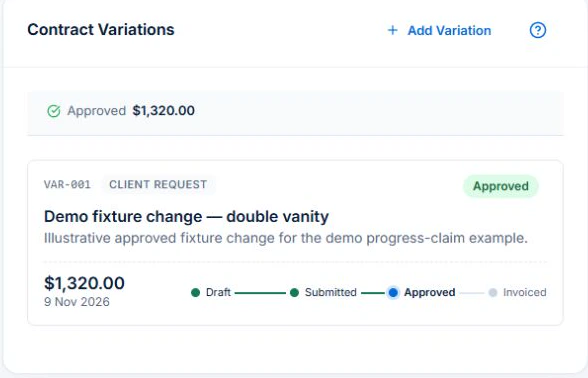
Open Contract Variations on the job and record the requested work and price. Review the approval status against your agreed process. Keep the original scope and the requested extra separate until the change is approved.
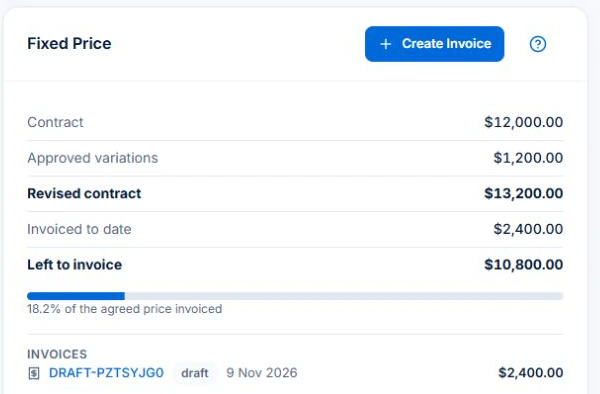
On the fixed-price job, check Approved variations and Revised contract in the Billing card. Refresh after approval and confirm the revised balance reflects the change. Check earlier claims before drafting another one. Variation approvals require Professional. Base fixed-price claims are available on all plans in the web app within their limits.
Separate a request from an agreed change
Record the request against the original job, including who asked and what they want changed. Describe the difference from the existing scope. A note saying “extra work” leaves too much for the next person to infer.
Check whether the work is already included before pricing it again. If it is a correction to something you were already responsible for, that is a different situation from a newly requested addition. Resolve that distinction before preparing a revised amount.
If the original scope is too vague to distinguish an extra, use the job quoting workflow to define work areas, quantities and exclusions clearly in the next proposal. Check what the customer accepts before carrying that scope into the job.
Make the effect on price and timing visible
Illustrative example: the original scope is $1,000 and a requested addition is priced at $200. Once that addition is approved, the revised service amount is $1,200 before applicable tax. Record the original reference, the $200 change and the approval together.
If the addition needs another visit, different materials or a later completion date, record that too. The new price alone does not explain what the scheduler or crew should do. The downloadable record includes a blank worksheet and a filled example.
- Original job and scope reference
- Requested addition or omission
- Change in amount and revised total
- Effect on work, materials or timing
- Approval status and supporting reference
Give the crew an unambiguous instruction
Make it easy to tell whether a change is requested, awaiting an answer or approved. The person on site should not have to guess from an old message. If the request changes again, update the current instruction and keep the earlier record understandable.
A recorded signature, message or approval has context. Preserve the description that the customer was responding to rather than keeping an isolated “yes”. Your agreement and normal approval process determine what you need before proceeding.
Trace the approved change into billing
Before invoicing, check whether the approved amount is included and whether any part has already been billed. For progress billing, review previous claims as well as the revised value. Approval of a change and payment of an invoice are separate events.
AxiomBlue’s contract variations, approval states and revised contract values require Professional. Inspect a sample fixed-price change and its billing result in the demo or on that plan. Your agreement and approval process determine what authorisation is needed.
Make it useful today
Print or keep a working copy.
Each resource includes a blank worksheet and an illustrative example. Open it to print, or download an HTML copy to keep. No signup needed.
Put it to work
Your practical checklist
- Check the original scope before adding a charge.
- Describe the change and its timing effect.
- Keep the approval connected to the description.
- Update the crew’s current instruction.
- Reconcile the variation with previous and proposed billing.
See the records in Axiom Blue
Try the workflow with a familiar job.
Features and usage limits vary by plan. Review the tools relevant to your process before choosing your setup.