
Start with the reason the customer is being billed
For time-and-materials work, match the hours and quantities to the work delivered. For a fixed-price arrangement, check the claim against approved scope and previous billing. The billing basis determines which figures you need.
Read the draft as the customer will
Open Invoice Preview and check each line, its rate and GST. If the amount is surprising, trace it to the job before creating the invoice. Check the recipient and terms before sending.
Review labour and materials before creating the invoice
Open a completed time-and-materials job and select Generate Invoice. AxiomBlue brings eligible labour and materials into Invoice Preview, where you can check charged hours, quantities, rates and GST before creating the invoice.
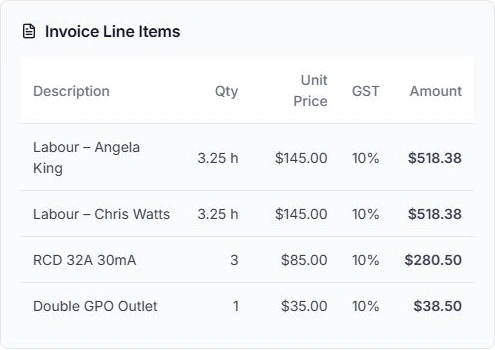
On VFE-J106, the preview shows two labour lines of 3.25 hours at $145 per hour, three RCDs at $85 each and one outlet at $35. Check chargeable hours against the agreement and billing rules; they need not equal elapsed time on site. Compare material quantities with the agreed work and correct discrepancies in the source records first.
Explore AxiomBlue invoicing and payment tracking for the full product workflow.
For the field workflow, follow invoicing from a completed job.
Check the total against the work you agreed to bill
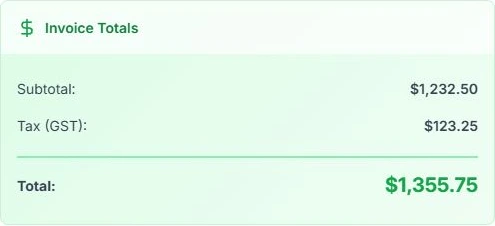
The same preview shows a $1,232.50 subtotal, $123.25 GST and $1,355.75 total. Use the line items to explain the amount, then check customer details, tax treatment, approved extras and earlier billing before creating the invoice.
These are proposed charges from the current entries, not confirmation that the scope or bill is correct. Once the preview is checked, create the invoice record and review the customer document before sending. Previewing or creating an invoice does not collect payment.
Choose the billing basis before interpreting the entries
Recorded hours answer how much work was delivered. Whether those hours become charges depends on the agreement. A fixed-price installation may take longer without changing its contract price; an agreed additional task may need a separate approval.
| Billing basis | What to review | Axiom Blue path |
|---|---|---|
| Time and materials | Eligible recorded hours, materials, rates, tax and previous charges | Generate Invoice on completed work; review Invoice Preview |
| Fixed price | Agreed contract, approved variations and remaining amount | New Claim in the web app with View Jobs and Create Invoices |
| Progress billing | Amount already claimed and the current agreed stage | Professional deposit, progress or final claim against the contract |
| Recurring service | Delivered and skipped visits against the billing agreement | Professional series configuration; payment authorisation is separate |
Keep requested extras separate from cost overruns
If a customer asks for extra work, describe it and agree the price before treating it as revenue. Professional variations keep the proposed change and approval with the job. Review approved extras and earlier billing in the invoice or claim workflow.
Separate fixed-price cost overruns from approved scope changes. Check rates, duplicate entries and the agreement when reviewing the invoice preview.
Read next Record and bill job variations in AxiomBlue → · Review job costs in AxiomBlue: quote against actual work →
Review, issue and send the customer document
Check customer and site, descriptions, quantities, rates, tax treatment, prior charges and the final amount. Check business details, payment terms and payment instructions too. GST depends on the business registration and taxable lines; inspect the document rather than assuming every line has the same treatment.
Create the invoice record after reviewing the preview, then use the invoice workflow to check, approve and send it. The customer can receive a PDF and a viewing link without creating an account. Sending and online payment need a connection. Online card payment requires Professional and connected Stripe; processing fees apply.
Check the invoice against the current Australian Government and ATO requirements that apply to your business and contract.
Read next On-site invoicing: invoice on the job →
Sources: business.gov.au: How to invoice
Follow the balance and the accounting handover
An issued invoice, a payment request and a recorded payment are different states. Review the invoice balance and receipts; do not treat sending the document as money collected. Check a part payment as well as full payment in your test.
Professional supports configured accounting connections and reminder workflows. Inspect mapping, sync results and exceptions with your accountant. Axiom Blue does not calculate payroll, lodge BAS or produce full financial statements.
Check the plan and the total for your team
Core time-and-materials job invoicing is available on the limited Free plan and paid plans. Fixed-price claims are available in the web app on all plans, subject to usage limits. You need View Jobs and Create Invoices. Professional is required for variations, recurring series, accounting sync, automated reminders and Stripe online payment. Compare the plan for your actual billing method.
Axiom Blue monthly first-seat prices are $29 AUD on Basic and $59 on Professional, excluding GST. Additional seats use graduated discounts: 10% off for seat two, 20% for seat three, through to 50% off from seat six. Paid plans have no job-volume cap. Check your actual team and billing interval on the pricing page; SMS credits and payment-processing fees are separate.
Free is a one-user core-workflow test: 10 jobs per week, 10 quotes and 10 invoices per month, 25 customers and 25 leads, with no file uploads. Use the demo to inspect Professional capabilities before choosing a plan.
Make it useful today
Print or keep a working copy.
Each resource includes a blank worksheet and an illustrative example. Open it to print, or download an HTML copy to keep. No signup needed.
Common questions
Questions about invoice state and access
Does marking a job complete send the invoice?
Use Generate Invoice to review completed time-and-materials work, then check, approve and send the document. Professional automation can prepare a draft for this review.
Are fixed-price and progress claims on Free?
Yes. Free supports fixed-price claims in the web app within its one-user and invoice limits. You need View Jobs and Create Invoices. Variation approvals require Professional.
Can I edit the mobile preview before sending?
The native invoice preview is for review. Correct the job records or use the web invoice workflow for the required document changes. Check the issued version before sending, with a connection and the appropriate permissions.
Put it to work
Your practical checklist
- Billing basis matches the agreement.
- Received entries, rates and tax are checked.
- Approved extras and previous charges are accounted for.
- Invoice is reviewed, issued and sent through the proper workflow.
- Payment and accounting results are reconciled separately.
See the records in Axiom Blue
Check the job-to-invoice handover
Open the completed job, select Generate Invoice and review the lines before creating an invoice. Free supports one user within usage limits. Fixed-price claims are available in the web app on all plans, subject to usage limits. You need View Jobs and Create Invoices. Variation approvals require Professional.