
Check the bill while the visit is fresh
With the completed time-and-materials job open on a connected phone, review the chargeable hours and parts. Compare them with any work agreed during the visit.
Finish the handover at site
Check the invoice preview and customer details, then issue and send the checked bill. Back in the office, verify its status before contacting the customer or creating another invoice.
Check the bill on the job before leaving the site
Open the completed job and confirm the customer, work site and billing method. With job access, Create Invoices and either View Job Financials or View Invoices, choose Generate Invoice and inspect the preview while connected. If the job already has an invoice, open that record first.
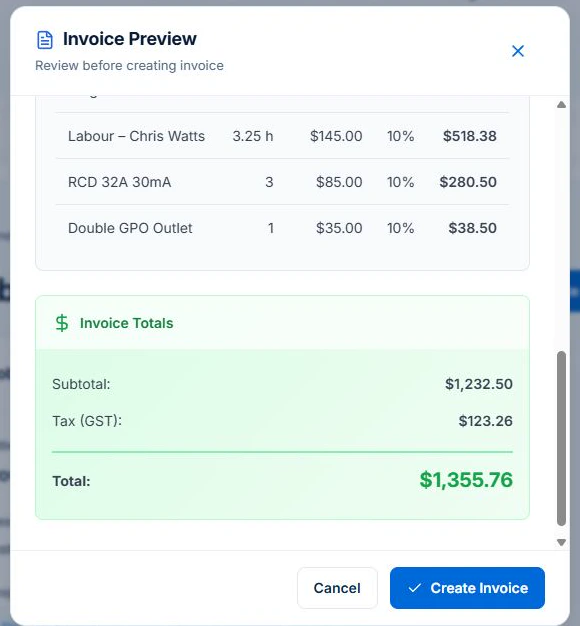
Create the draft once the lines are ready. Review the recipient, then issue and send it while connected and with the required permission. Use the Billing card in the web app for fixed-price claims.
Use the phone workflow in a clear order
Use your actual phone and permitted role. For completed time-and-materials work, follow this sequence before the customer receives a document.
- Review time and material entries, billable settings, rates and quantities against the agreement.
- While connected, choose Generate Invoice and review the proposed lines, tax and total. Check previous charges separately. If a linked invoice already exists, open it first.
- Correct source records where needed. Use the web invoice workflow for document edits the native preview does not support.
- Confirm creation, then check and approve the invoice through the invoice workflow.
- Send with a connection. Inspect the customer PDF and no-login viewing link, payment instructions and due date.
Handle a fixed price, extra work or missing connection
For fixed-price work, recorded labour explains delivery cost; the contract sets billing. Use the Billing card in the web app to review the contract, any approved variations and the amount already claimed. Variation approvals require Professional. Use the relevant web workflow instead of treating the mobile time-and-materials preview as a claim.
Price and approve requested extras before billing them as variations on Professional. If an entry is pending sync, check its receipt before creating the bill. Native apps can queue supported field actions, but invoice creation, sending and payment need a connection.
Read next Job invoicing software: bill from the job record → · Record and bill job variations in AxiomBlue →
Check what the customer received and what they paid
Open the issued document as the customer would: is the work described clearly, is the amount correct, and are the ways to pay recognisable? Check business and payment details against your settings. Use current Australian Government guidance for applicable invoice requirements.
Online card payment requires Professional and connected Stripe; processing fees apply. A payment made by another method still needs recording and reconciliation. Sending an invoice, opening its link and receiving a payment are separate outcomes. Axiom Blue does not provide a card reader or promise immediate payment.
Sources: business.gov.au: How to invoice
Leave a usable handover for the office
Check the invoice status and remaining balance from the office account. If a customer paid part of it, record the correct amount and confirm that subsequent follow-up uses the remaining balance. Note any billing query that needs a person.
Professional accounting sync and configured reminder workflows can support the next stage. Review sync results and reminder exceptions; a document sent from site does not remove reconciliation or guarantee a shorter payment time.
Check the plan and the total for your team
Free can test core invoicing for one user within its monthly cap. Choose a paid plan for team access and uploads, and Professional for variation approvals, accounting connections or Stripe online payment.
Axiom Blue monthly first-seat prices are $29 AUD on Basic and $59 on Professional, excluding GST. Additional seats use graduated discounts: 10% off for seat two, 20% for seat three, through to 50% off from seat six. Paid plans have no job-volume cap. Check your actual team and billing interval on the pricing page; SMS credits and payment-processing fees are separate.
Free is a one-user core-workflow test: 10 jobs per week, 10 quotes and 10 invoices per month, 25 customers and 25 leads, with no file uploads. Use the demo to inspect Professional capabilities before choosing a plan.
Common questions
On-site invoicing questions
What should I do if the invoice preview is incomplete?
Check that time and materials arrived and belong to this job, and that billing settings match the agreement. Correct the records or document through the relevant workflow. Do not send an incomplete preview merely because the job is complete.
Can I send and take payment without signal?
Invoice creation, sending and payment require a connection. Save supported field actions in the native app, reconnect and confirm receipt, then finish the billing workflow.
Does invoicing from site replace the office review?
Only if the authorised person has all the information needed to review and issue it correctly. Otherwise, leave the records and review task with the office. The useful outcome is a correct document, not a compulsory invoice at every visit.
Put it to work
Your practical checklist
- Correct job, customer and agreement inspected.
- Field entries received before billing.
- Preview reviewed using the correct billing method.
- Issued customer document and payment instructions checked.
- Balance and office handover confirmed.
See the records in Axiom Blue
Try the phone-to-office invoice handover
Inspect this workflow in the public demo, or use Free for limited single-user core work. Uploads start on Basic; crew management, recurring series, variations, weekly timesheets and automation require Professional.
Product instructions
Published by Axiom Blue. Tax invoice, consumer law, payments and scam figures come from the ATO, business.gov.au, the ACCC, the RBA and Xero as cited, checked 25 September 2026. This is general information, not tax or legal advice.