
Use the phone the worker takes to site
Sign in with a field worker’s access, find the assigned booking and read the address and tasks. Record an update against that job instead of sending it separately to the office.
Check both ends of the handover
Reconnect the device and have the office open the job. Verify the update arrived once and belongs to the correct visit. Check upload requirements if photos or documents are part of your process.
Check the worker’s view and the office’s received record
With the worker’s access, open the assigned job while connected. Check the site and agreed instructions. Put visit-specific directions in the job’s Description or Tasks, where the worker can open them.
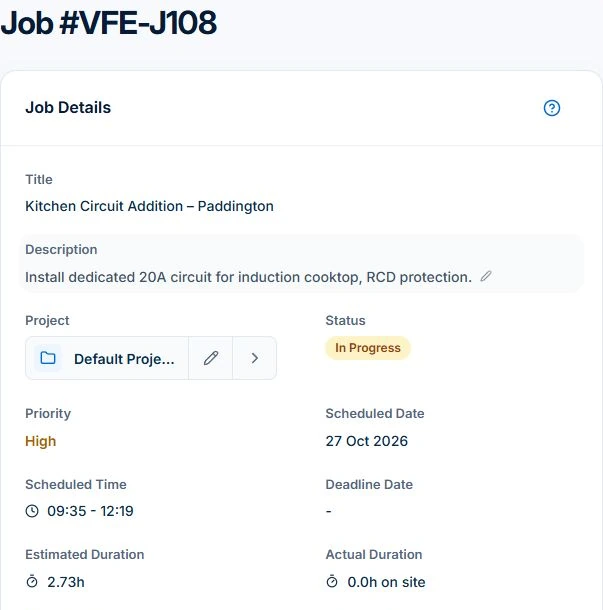
In the native app, disconnect and tick a task on the job you just loaded. Reconnect, then open the same job from the office and confirm the update arrived. Sending quotes, creating or sending invoices, and online payment need a connection.
Record delivery and inspect the office handover
Clock on and off against the correct job and record the materials used. Check the worker’s permitted actions and the office’s received entries. Basic and Professional add photo and document uploads; verify the attachment belongs to the right visit and can be opened by the intended reviewer.
Use two different accounts on paid access for the role test. One administrator account cannot show whether a field worker has the necessary access or whether they can see records beyond their assigned work.
Read next Use a job card in AxiomBlue → · Timesheet software for tradies: hours and approval →
Distinguish native queued work from connected actions
At a site with poor reception, test the native actions your crew actually needs and inspect any pending status. Reconnect and confirm the job received them before billing. A saved local action and a received office record are different stages.
Do not treat the responsive web screenshot as proof of native offline behaviour. Browser access has different offline capabilities. Sending quotes, creating or sending invoices, and online payment need a connection.
Keep location and billing decisions explicit
Where the device shares location, time entries can include the location recorded with the action. Agree the process with the team and test the required permissions and background behaviour on their devices.
For completed time-and-materials work, inspect the mobile invoice preview and use the invoice workflow to review, approve and send when connected. Fixed-price claims use the web app with View Jobs and Create Invoices. Variation approvals require Professional. Review the agreed price before billing.
Read next On-site invoicing: invoice on the job →
Run a small rollout test before relying on the app
Use one familiar day, a changed assignment and a low-signal visit. Test the actual iPhone and Android models in use, the worker’s permissions, a photo on a paid plan and a missing entry. Record what the office received and what still needed attention.
- Worker can locate assigned scope, site and instructions.
- Time and materials are attached to the correct job.
- Paid uploads and supported queued actions arrive after reconnecting.
- Changed bookings and permitted actions make sense on each device.
- Invoice review uses received records and the agreed billing method.
Check the plan and the total for your team
The apps are available with core account access. Free is a single-user test; Basic or above supports multiple paid users and uploads. Professional is needed for weekly timesheets, crew management, variations and advanced workflows.
Axiom Blue monthly first-seat prices are $29 AUD on Basic and $59 on Professional, excluding GST. Additional seats use graduated discounts: 10% off for seat two, 20% for seat three, through to 50% off from seat six. Paid plans have no job-volume cap. Check your actual team and billing interval on the pricing page; SMS credits and payment-processing fees are separate.
Free is a one-user core-workflow test: 10 jobs per week, 10 quotes and 10 invoices per month, 25 customers and 25 leads, with no file uploads. Use the demo to inspect Professional capabilities before choosing a plan.
Common questions
Device and field handover questions
Is the screenshot showing the native app?
The image shows the mobile web view. Check the native app on your crew’s iPhone or Android devices for the required actions, permissions and offline workflow.
Can I assume a pending action has reached the office?
No. Reconnect, review synchronisation and inspect the received job record. Resolve missing or failed actions before using those records for billing.
Can a worker start in the browser?
Web access gives another way to inspect and use permitted records. Test the required phone tasks in that browser; it does not inherit every native offline capability.
Put it to work
Your practical checklist
- Actual devices and roles tested.
- Assigned instructions usable without a phone call.
- Recorded work and uploads received by the office.
- Native and browser boundaries understood.
- Changed work and billing reviewed before rollout.
See the records in Axiom Blue
Test the field records on your devices
Inspect this workflow in the public demo, or use Free for limited single-user core work. Uploads start on Basic; crew management, recurring series, variations, weekly timesheets and automation require Professional.