
Build the weekly record from job time
Have workers check job hours and approved leave, then add other eligible time. Resolve overlaps or missing entries before submitting the week on Professional.
Give payroll the approved version
The supervisor can approve a correct week or return it with a specific correction. Check the final hours and export them for the payroll process after approval.
Inspect the week and its review states
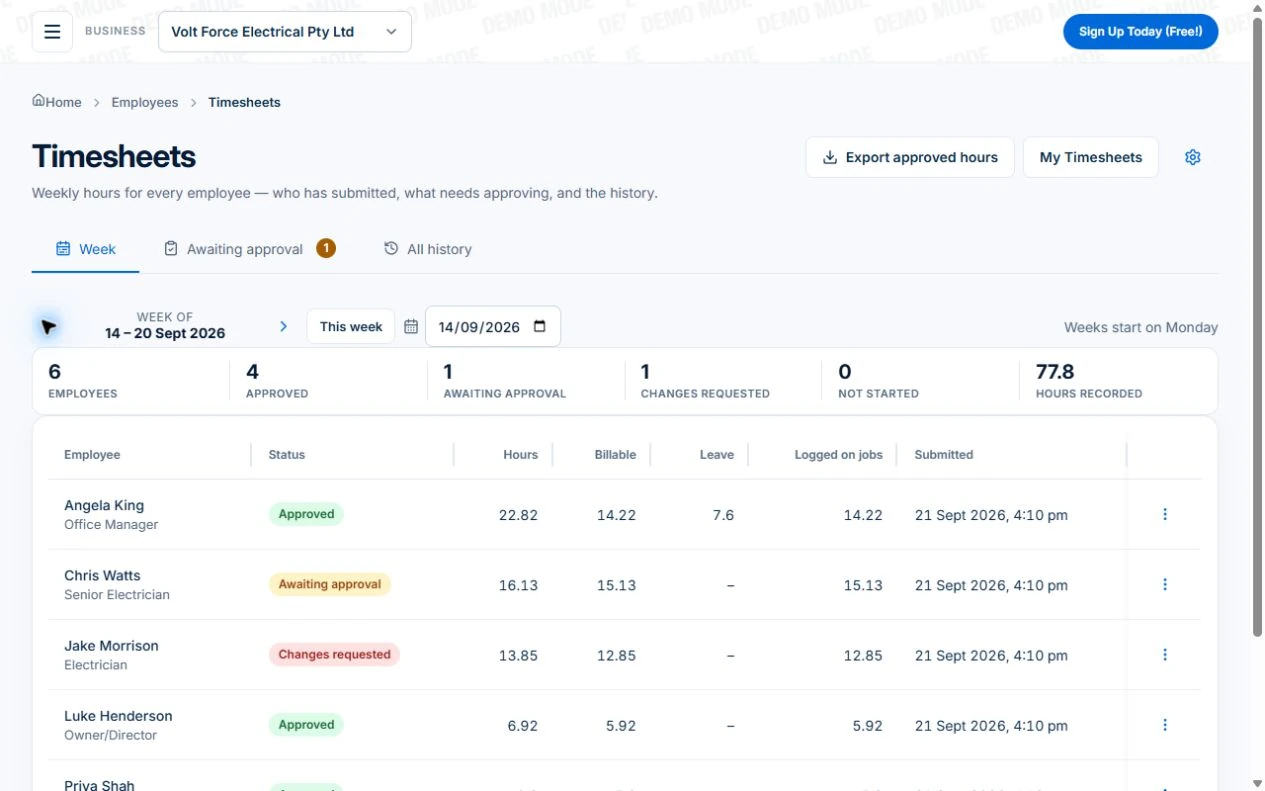
Use Professional weekly timesheet states to see which hours are approved for payroll handover, awaiting review or needing correction.
For an illustrative week, record work against the right jobs and include the applicable breaks and other time. Review the actual employee and pay-week setup rather than assuming a daily total explains how the hours were used.
Record time against a job
- Open the job from the worker’s schedule and check its number and Description before clocking in. Clock out when the work stops; use the actual job rather than a generic daily total.
- In the job’s Time Tracking card, review the person, start, finish and hours. An authorised reviewer can use Add Entry or edit the record for a missed entry. Explain a correction in the job record and review the Billable setting against the charging agreement.
- On Professional, review the weekly timesheet, resolve exceptions and export approved hours for your payroll process. Compare fixed-price job time with the estimate as a cost check; do not add that time to the customer’s invoice merely because it was recorded.
Do not confuse recorded time with billable time
A worker may spend time collecting materials, returning to fix an issue or completing a fixed-price job. The record should explain what happened even when the customer is not charged for every hour.
Your pricing agreement determines the bill. Review recorded time alongside the contract, billing rules and any approved changes. A timer stopping is not, by itself, a reason to charge the customer.
Capture job time and review the received entries
Clock on and off against the job through the native app or web platform. Inspect person, job, start, finish and breaks. Where location is shared, inspect the recorded point; it is not continuous vehicle tracking.
Native apps can queue supported field actions. Reconnect and confirm receipt before approving the week. A local entry that has not arrived can leave the office sheet incomplete; browser access has different offline behaviour.
Submit, request corrections and approve deliberately
On Professional, the employee reviews the week and submits it. The approver checks the entries, approves or requests changes with a reason. Inspect the submission and approval history when a correction is needed.
- Employee checks job entries, breaks, non-job time and any leave records.
- Submit the week and confirm its review state.
- Approver checks missing, overlapping or misallocated entries and requests changes where needed.
- Employee corrects and resubmits; the approver inspects the result before approval.
- If an approved period needs correction, use the permitted reopen process and review the resulting history and export.
Export hours without treating them as calculated pay
Professional Export approved hours produces a CSV for the chosen period and layout. Inspect which approved sheets are included and whether daily totals or detailed lines fit the payroll handover. Reconcile the file with the reviewed week before import or manual entry.
Review recorded and billable hours for the job, then hand approved hours to your payroll process. Use the appropriate wage and award calculations separately from customer billing rates.
Use the same hours carefully in job-cost review
Job time can explain why labour differs from the estimate. Check cost-rate completeness and material costs before interpreting contribution. Uncosted or missing entries do not establish zero cost; customer billing still follows the agreement.
Employment records extend beyond timesheets. Fair Work says employers must keep time and wages records for seven years and specifies the required records. Review those requirements separately from the product workflow; an approved sheet alone is not a complete employment record.
Read next Review job costs in AxiomBlue: quote against actual work →
Sources: Fair Work Ombudsman: Record-keeping
Check the plan and the total for your team
Core job clock-on is available on Free and paid plans. Weekly timesheets, review, approval and approved-hours CSV export require Professional. Use the demo for that review workflow rather than expecting Free to provide it.
Axiom Blue monthly first-seat prices are $29 AUD on Basic and $59 on Professional, excluding GST. Additional seats use graduated discounts: 10% off for seat two, 20% for seat three, through to 50% off from seat six. Paid plans have no job-volume cap. Check your actual team and billing interval on the pricing page; SMS credits and payment-processing fees are separate.
Free is a one-user core-workflow test: 10 jobs per week, 10 quotes and 10 invoices per month, 25 customers and 25 leads, with no file uploads. Use the demo to inspect Professional capabilities before choosing a plan.
Make it useful today
Print or keep a working copy.
Each resource includes a blank worksheet and an illustrative example. Open it to print, or download an HTML copy to keep. No signup needed.
Common questions
Timesheet and payroll handover questions
Does approval calculate the wages owed?
No. Approval reviews the recorded hours. Your payroll process calculates pay, entitlements and deductions. The Professional CSV supplies hours; it does not calculate wages or lodge STP.
Can I export a week that still needs changes as approved hours?
Check the actual sheet states and chosen export period. The approved-hours workflow is for approved sheets; resolve incomplete or queried records before payroll handover.
What happens if a correction follows an export?
Use the permitted correction and approval process, inspect the history and reconcile the corrected period with payroll. Do not assume a later export automatically updates a pay run already processed.
Put it to work
Your practical checklist
- Correct pay week and employee selected.
- Received job hours, breaks and non-job entries reviewed.
- Corrections and approval history checked.
- Approved CSV reconciled with the payroll process.
- Employment records and billing decisions handled separately.
See the records in Axiom Blue
Inspect the week before handing hours to payroll
Inspect this workflow in the public demo, or use Free for limited single-user core work. Uploads start on Basic; crew management, recurring series, variations, weekly timesheets and automation require Professional.