
Identify who can authorise the change
Put the work site and the authorised contact on the job. If a new instruction arrives from site, compare it with accepted scope and check its approval before changing what the crew is asked to deliver.
Give the next crew a precise handover
Record the part of the stage that is ready, the work still waiting on a decision and who will confirm it. The crew should be able to identify the approved task before starting it.
Give the foreman one job record to work from
Select the saved Site for the job. In Description, record who can grant access and who the project has agreed can approve extra work. Put the current stage’s checks in Tasks, such as confirming the work area is clear before the crew arrives. Open the job with the foreman’s access and check what is visible on their phone.
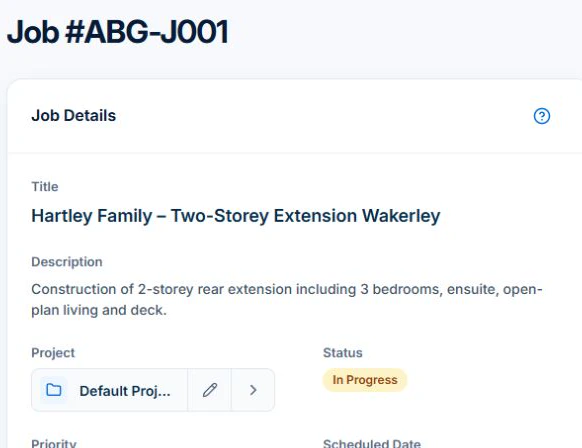
On Basic or Professional, attach the relevant scope document if you have upload access. If a site contact asks the crew to move a fixture, record the request through the variation process on Professional. Check its approval status before changing the crew’s instructions.
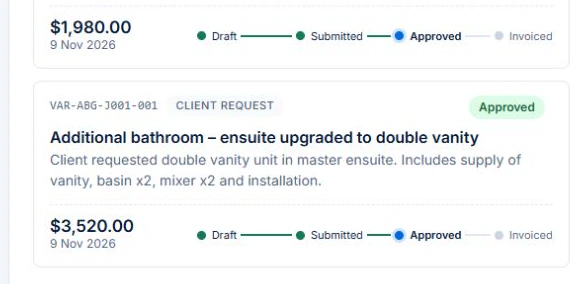
Name who can approve a change
Identify the client, invoice recipient, access contact and authorised approver. Route new instructions through the agreed approval process before treating them as a variation.
Keep the current scope accessible alongside its history
Keep current drawings, version references and approved changes available with the job instructions. Confirm each trade is working from the intended revision at handover.
- Contracting client and payer
- Site contact and approval authority
- Accepted scope and current document references
- Approved variation references
- Stage handover, unresolved issue and next owner
Test the handover after a changed selection
Illustrative case: the client changes a fixture while a subcontractor is preparing the next stage. Retain the request, approval and current selection, then update the delivery instruction. Confirm who has received it and what the change does to readiness. Review the commercial amount and claim separately.
Make the next visit usable from the field account
Keep lasting site detail separate from today’s scope and unresolved tasks. In AxiomBlue, the separate customer-site notes field is available in the web app; put the instructions needed by a native-app worker in the job description or tasks. Verify access from the worker’s account. Uploads need Basic or Professional; Free has customer and usage limits.
Restrict sensitive access information and share only what the person needs. Check current details with the customer instead of carrying an old instruction into every future job. Professional adds crew management and recurring job series where those suit the work.
Sources: Protect customer information
Common questions
Questions about this process
Does a site instruction automatically approve extra billing?
No. Follow the agreement’s approval process and retain the commercial decision. Keep delivery instructions and entitlement to charge connected but distinguishable.
Put it to work
Your practical checklist
- Identify contract, site and payer roles.
- Verify authority for extra-work approval.
- Reference the current scope and document revision.
- Record stage readiness and unresolved work.
- Check the next trade’s actual instructions.
See the records in Axiom Blue
Try the workflow with a familiar job.
Features and usage limits vary by plan. Review the tools relevant to your process before choosing your setup.