
Use a renovation with an approved extra
Start every trial with the same original scope and price. Add a client-requested change. Ask the office to show where approval is recorded and ask the site supervisor what the crew should now build.
Follow the money through the next claim
Enter an earlier claim, then prepare the next one. Compare the revised contract, the amount already billed and the balance. Record any step where a team member has to reconcile the change outside the product.
Run the same fixture change in each shortlisted tool
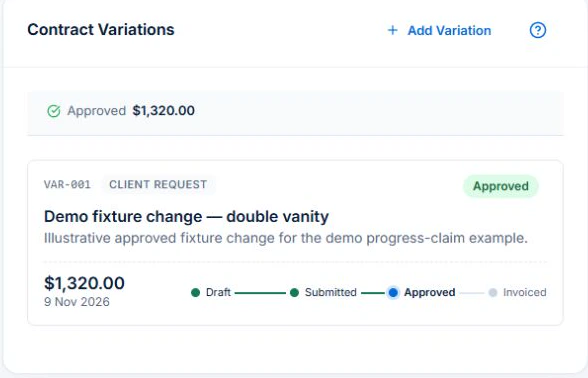
In AxiomBlue, use an accepted fixed-price renovation quote to create the job. With Professional and the relevant access, use a project ticket to record what is due at the stage. Enter the fixture change as a variation and check its approval status against the agreed scope.
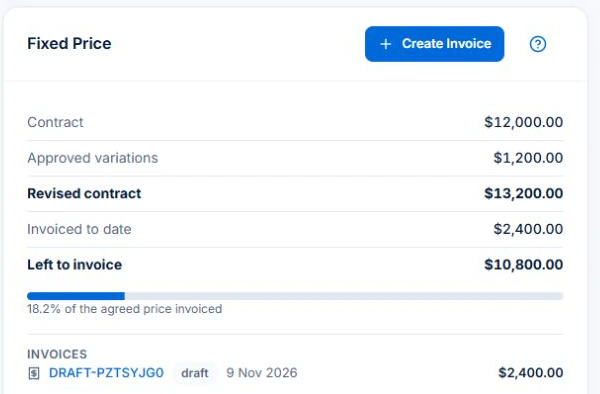
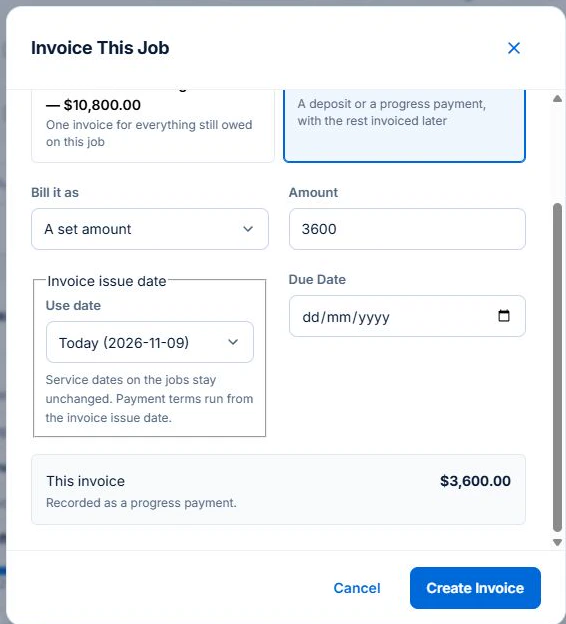
Use a fixed-price job with an earlier deposit claim that has not been voided. In the web app, open the Billing card with job, billing and invoice-creation access. Check the original amount, eligible approved change and earlier claims. Draft a claim for part of the remaining balance. Base fixed-price claims are available across plans within their limits. Repeat the scenario in each shortlisted tool and check whether you can trace each amount back to its record.
Keep the accepted contract visible through a change
Illustrative test: a small renovation adds a customer-approved fixture change after acceptance. Record the original scope, change amount and schedule effect. Ask where the revised commercial total comes from and whether you can still inspect the original agreement. Do not treat a changed estimate as customer approval.
Test the handover between stages
Test two dependent stages and a subcontractor task. Change a date and inspect the resulting plan, ownership and instructions, then confirm team availability and subcontractor attendance.
For a concrete starting point, inspect the construction job management software overview to see how project tickets retain a roof-stage task and an unresolved drawing question. Use the project and contract records to plan stages and prepare claims.
Rehearse the construction client and site handover with a changed selection: check who approved it, which scope is current and what the next stage’s owner can see.
Reconcile the next claim with previous billing
Create a sample stage claim and then the next one. Check the contract, approved variations, previously claimed amounts and remaining value on the same basis. Review materials and subcontractor costs separately from customer charges. Your actual contract and local payment requirements govern what can be claimed.
Price the roles and required plan, then check the handover
Ask each shortlisted vendor for the plan and total cost for your actual office and field users, workload, billing interval and devices. Include tax basis, optional messaging, payment charges, training and exports. Keep a written result for each test: worked, needs a manual step, or unavailable. A feature-list tick is not a completed test.
AxiomBlue’s Free plan supports one user within usage limits and has no uploads. Basic adds uploads; Professional adds crew skills and leave, recurring job series, variations and project tools. Check the current pricing page for the team total. Try a required Professional process in the demo and confirm access before choosing a plan.
Common questions
Questions about this process
Does a project chart replace daily crew scheduling?
Check task dependencies and dates alongside team availability, then confirm the people needed for the stage.
Put it to work
Your practical checklist
- Retain the accepted contract through a change.
- Test a dependent stage and a subcontractor handover.
- Reconcile two sample progress claims.
- Check direct costs separately from customer billing.
- Price project access for the actual team.
See the records in Axiom Blue
Try the workflow with a familiar job.
Features and usage limits vary by plan. Review the tools relevant to your process before choosing your setup.