
Choose a trigger
Start from the business event or scheduled check that should begin the process. Configure its conditions before adding a message.
Workflow automation / AxiomBlue
Set a follow-up for quotes still waiting on a decision. AxiomBlue Professional can send the customer’s email while the portal is closed. Check the recipient, timing and time zone, then test what happens when a quote has already been accepted.
Choose when the routine should run, then check what it actually sends.
Plan fit: Workflow automation requires Professional and a configured, enabled workflow. The monthly first seat is $59 AUD excluding GST; additional seats receive graduated discounts. SMS uses purchased business credits; external services may have their own setup and charges. Compare plans →
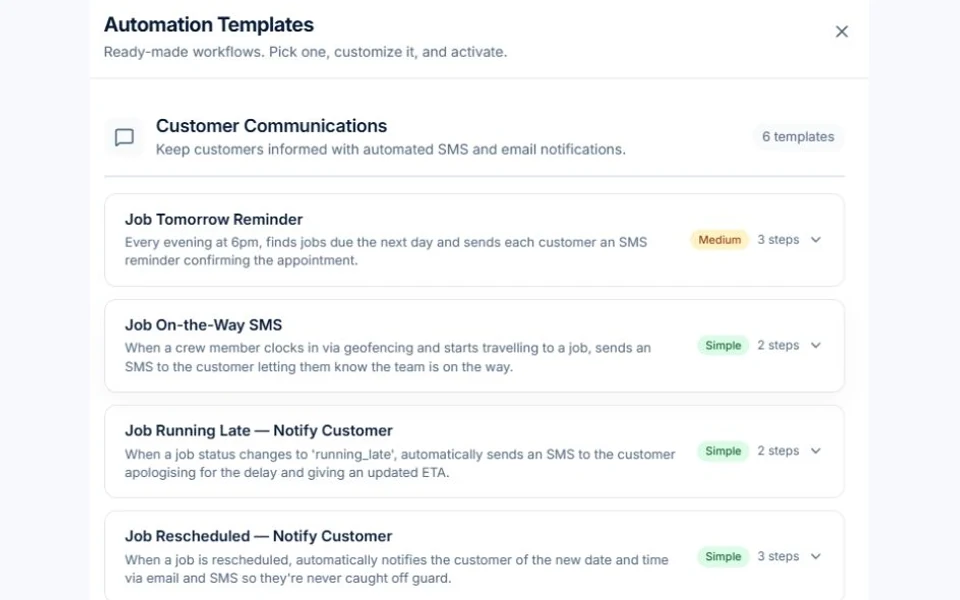
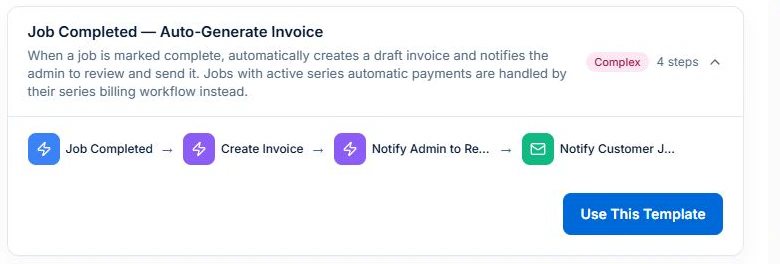
The demo’s completed-job invoicing template shows the trigger, draft creation and admin review. Check the billing conditions and how the preset handles jobs with active series payments.
The editor’s Test previews actions without delivering messages. After a controlled active run, review execution history. SMS actions use purchased credits.
Suppose a customer receives a quote on Tuesday and still has not decided a few days later. Schedule a follow-up or use a supported delay on Professional. The enabled workflow runs on the server, so nobody needs to leave the portal open.
Check that the quote still qualifies immediately before sending. A customer with an open quote may need a reminder; one who has accepted needs the next job update. Set the recipient and check that customer email is enabled for the business.
Preview one quote awaiting a response and another already accepted. Check the time zone for the schedule or delay, the rendered subject and body, and the path each quote follows. After activation, use the run and delivery records to investigate an unexpected result.
Use this feature for customer or team messages tied to qualifying business records. A saved template supplies reusable wording. The workflow determines whether and when it is used.
Yes, when an enabled workflow reaches its scheduled or delayed email step, the record qualifies and customer email is enabled. Check the configured time zone and delivery record.
Check the current quote status after the wait and before the send step. Test both an unanswered quote and an accepted one. The delay alone does not decide who qualifies.
Open the execution record for the quote and check which branch ran. If the email did not arrive, check the recipient, customer email settings and delivery result before changing the timing or contacting the customer again.
Start from the business event or scheduled check that should begin the process. Configure its conditions before adding a message.
Set supported schedules or delays, check the time zone and review execution logs to confirm the workflow’s timing.
Try the normal case and changed records, such as an accepted quote or a paid invoice, before enabling follow-up for customers.
Picture it in your business / Example
Configure a quote follow-up and its wait, then test the recipient and quote state before enabling it. Try an accepted quote as well as one still awaiting a response. Review the execution and delivery result instead of assuming a delay by itself prevents an inappropriate follow-up.
A practical starting point
Pick one repeat email and name the person responsible for reviewing it.
Set the trigger, conditions, recipient and supported delay or schedule. Check the time zone used by the relevant setting.
Use normal, already-resolved and changed-record cases. Review the run log and actual message.
Enable the tested workflow on Professional and review failed runs and exceptions.
Know what’s included
Workflow automation requires Professional and a configured, enabled workflow. The monthly first seat is $59 AUD excluding GST; additional seats receive graduated discounts. SMS uses purchased business credits; external services may have their own setup and charges.
Compare plans, limits and pricing →Check the workflow in detail
Explore the detail
Availability varies with plan, permissions and enabled features. Check plan inclusions.
See how this fits: make it work your way →Before you get started
Have a specific workflow in mind? Talk it through with us.
Configured server workflows can run while the portal is closed. Set the supported schedule or delay, check the time zone and test the execution result before enabling it.
No. Workflows require Professional and a configured, enabled process. Review its conditions, recipients and timing and test exceptions before using it for live work.
The delay handler supports a fixed wait, a chosen time or a date field, depending on the workflow configuration. Check the time zone used for an until-time delay and inspect a test run before relying on it.
SMS uses purchased business credits. Check the available credits, recipients and message settings before enabling an SMS workflow.
Keep the work connected
Considering a switch?
Use a familiar job to compare the way you work today with the way Axiom Blue handles it.
Check the quote, schedule, job record and invoice. Look for the details your team needs.
Compare usage limits, paid seats and specialist features. See plans and pricing →
Try your own quote on the free plan. Before moving existing records, ask us about your data and setup needs.
Make the next step a small one
You know where the friction is in your business. Open the demo and see how AxiomBlue handles it. Then start with your own quote on the free plan.
Free forever for one person. No credit card. Usage limits apply.
Try a quote like one you send every week. Check the detail your customer will see.
Explore a job, its crew, time and materials. Look for the information you usually chase.
Compare the features and limits you need. See plans and inclusions →