
Ask after the customer has seen the work
The completed-job preset includes a two-hour wait. Check which completion starts it, whose email address it uses and whether the review link opens your business’s listing.
Give the customer room to answer honestly
Use a short invitation such as “How did the job go? You can share your experience here.” Send the same invitation regardless of the feedback you expect. Preview the wording and link before activating the workflow.
Check the result before using the preset
Run a preview with a completed sample job. Read the recipient address and actual customer message, including the review destination. Replace any preset text that invites only favourable reviews.
What we will set up
- Professional workflow access
- Job Completed trigger and a two-hour delay
- Customer email and a working Google review link
- Neutral request wording
- Controlled recipient and duplicate checks before activation
Workflows → Templates
Open the completed-job template and check the three steps
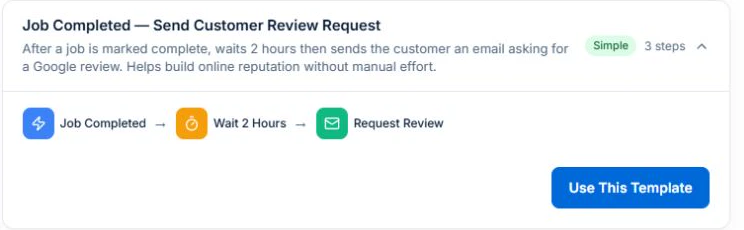
In Workflows → Templates, choose Job Completed — Send Customer Review Request. Inspect the Job Completed trigger, Wait 2 Hours step and Request Review email.
Check the email address from the job and open the Google Business Profile review link yourself. Replace the default satisfaction-based wording before enabling the workflow.
Concept
A preset supplies connected steps and field mappings to review.
Advantage
Starting with the current preset avoids recreating the process from an incomplete blank-canvas recipe.
Job Completed → Wait 2 Hours
Check completion and timing
Check that the trigger is Job Completed and that the delay is fixed at two hours. Completion must mean the agreed work is finished in your process.
Use the delay that suits your service and contact arrangements. Check what should happen if a job is reopened or completed again; do not assume the template suppresses every duplicate.
Concept
The trigger starts the request; the delay sets when the email action follows.
Advantage
Timing becomes a recorded setting rather than a staff member’s reminder.
Request Review email
Check the recipient and review link
The recipient comes from the completed job’s customer email. Check the customer record and preview the resolved address and name.
The preset uses the business Google review URL. Confirm it opens the correct profile. If that value is missing, insert your verified review link in the message before testing.
Concept
Job and business fields supply the customer address and review destination.
Advantage
The customer receives a request tied to their work and a link you have checked.
Request Review → message
Replace the request with neutral wording
Example: “Hi [name], thanks for choosing [business]. We would welcome an honest Google review of your experience: [review link]. Thanks for taking the time.”
Replace the preset’s “if you were happy” condition in the message. Do not ask for five stars, offer an incentive or select only satisfied customers for the request.
Concept
The wording invites feedback without steering the rating.
Advantage
A consistent request treats eligible customers fairly and gives the feedback useful context.
Workflow test and execution history
Test the outcome before activating
Use Test in the editor to preview the email address, wording and review link. Test previews the action without sending email. Include a job with no email and check how repeated completion would be handled.
If you need to verify live delivery, use a controlled active run with an address you control. Check execution history for a delivery failure or duplicate before using the workflow with customers.
Concept
Check the selected records, action results and failures, then assign an owner to review future runs.
Advantage
Resolve test failures before enabling the workflow for customer work.
Keep an owner for the workflow. Recheck the link and message when business details change, and review failed or duplicate runs.
The useful outcome is a reliable invitation to give honest feedback. The customer decides whether to respond and what rating to give.
Try it in Axiom Blue
Inspect your review-request process
Explore the workflow, then configure it for your business on Professional. Free covers limited core jobs, quotes and invoices.