
Make an arrival count against the right job
Choose a worker with an assigned job at a known site. Check the site boundary and assignment before testing entry and departure. A location event is useful only if it reaches the correct worker’s job record.
Review the shift before approval
Compare the recorded entries with the visit. Look for a return through the boundary, a missing departure or an overlapping entry. Resolve the discrepancy before using the hours for a weekly timesheet.
Inspect the entry and exit templates on a computer
Open Workflows → All Workflows → Templates in AxiomBlue. Under Job Operations, inspect Auto-Start Timesheet on Job Site Entry and Auto-Close Timesheet on Job Site Exit. Use This Template opens an editable workflow. Keep it Paused while checking its trigger, conditions and actions; review both halves before enabling a site-capture process.
The workflow editor requires a larger screen and is not available in the mobile browser. Configure it on a computer. The worker’s native iPhone or Android app supplies job-site events; those phone and location prerequisites need their own test. Professional automation access and appropriate workflow view/manage permissions are required.
Use Test to preview the flow with entered event rows before enabling it. Check that the expected clock-on and clock-off paths appear; validate live site detection separately on the phone.
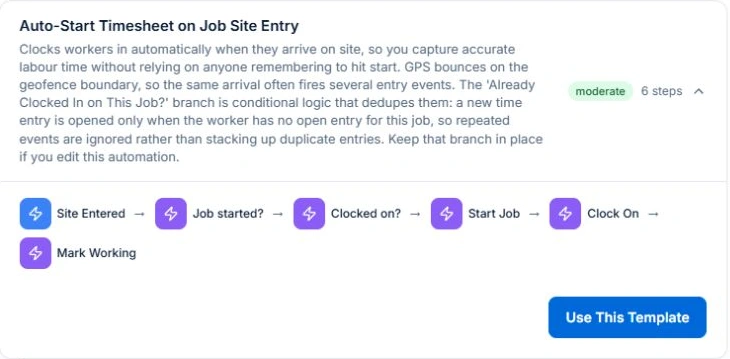
- Check the event is Site Entered for the start template and Site Exited for the close template.
- Retain the Job started? and Clocked on? checks in the entry flow, and the open-entry check in the exit flow.
- Inspect the job and worker carried through each preview row rather than judging the diagram alone.
- Keep the workflow paused until a supervised real-device pilot and record review are ready.
Check the assigned job and its actual site
Confirm the worker is assigned to the intended job and that the job has the correct site address and usable location. Review the customer address fallback if no separate job site is available; the billing office and the work site can be different places.
Test site detection on the actual phone with the native app, location services, required permissions and the job’s monitoring window configured. Check background behaviour before rollout.
Treat site coordinates, GPS accuracy and delayed synchronisation as inputs to verify. An event can arrive late or be absent. Do not assume the time shown in a preview is the time a worker started productive work, or that a brief pass near a property should become a labour entry.
Keep the status and duplicate-entry guards intact
The entry template checks whether the job has started and starts it when required. It then checks whether the worker is already clocked on for that job before opening an entry and marking the assignment Working. Confirm that starting a job on site entry fits your operational process.
The exit template checks for an open entry before clocking the worker off and marking the assignment Finished. This assignment state is separate from approving the whole job, accepting its scope, sending an invoice or approving payroll.
When customising the workflow, test repeated entry and exit signals alongside already-clocked-on and already-clocked-off paths to preserve duplicate checks.
Pilot a visit and the exceptions before rollout
Use a supervised sample job, the assigned worker’s actual phone and a known site. Agree what the test should produce before enabling the workflows. Review both the site-event result and the job’s time entries afterwards; the demo screenshots only document the configuration and synthetic preview.
The following are test expectations to check in your own setup, not results of a live field trial performed for this article. Include a manual clock-on, a missing or delayed event and an incorrect site reference. Correct the inputs or the entry before using its hours.
| Case to test | Record or decision to inspect |
|---|---|
| Entry with no open entry | Correct worker/job; one open entry; job and assignment states reviewed. |
| Repeated entry or worker already clocked on | Guard path prevents another open entry for the same job/worker. |
| Exit with an open entry | Entry closes and assignment state is reviewed. |
| Exit after a manual clock-off | No unintended extra close or duplicate entry. |
| Missing or delayed site event | Manual recording/correction remains available; actual entries are reviewed. |
- Explain the pilot and configured location use to the worker before testing.
- Check the current app’s location disclosure and the permissions actually granted.
- Inspect timestamps, breaks and any correction against what happened on site.
- Pause and investigate an unexpected result before expanding to more jobs.
Review time before billing or payroll handover
Open the actual job and review its Time Tracking records, worker, start/end times and any corrections. Use the appropriate reviewer permissions and retain the reason for a correction. The workflow preview’s sample rows are not those recorded entries.
Recorded time, billable time and payable time answer different questions. Check the agreed charging basis, approved work and earlier billing before creating an invoice. A fixed-price job does not become hourly billing because a timer ran for longer.
AxiomBlue does not run payroll or decide employment entitlements. Keep any payroll handover and approval process separate. Validate the actual records and available output in your business rather than assuming an automation supplies an approved pay result.
Read next Timesheet software for tradies: hours and approval → · Review job costs in AxiomBlue: quote against actual work →
Retain an owner for the automated process
Name the person who checks missed signals, incorrect site locations and unexpected open entries. Review the relevant workflow state and history when available, alongside the actual job record. Keep manual recording available as a deliberate fallback.
Recheck the process when a worker changes phone, site details change or a workflow is edited. A paused draft, a preview and an active process are different states. Enable only the setup and scope that you have reviewed.
Put it to work
Your practical checklist
- Confirm the correct job, worker assignment and geocoded work site.
- Review both desktop templates and keep their duplicate-entry guards.
- Check the actual phone, location permissions and monitoring conditions.
- Pilot normal entry/exit, repeated signals and manual fallback.
- Review actual time records separately from billing and payroll approval.
See the records in Axiom Blue
Review the two templates before relying on their time entries.
Professional automation access and appropriate permissions are required. Configure workflows on a computer, then validate site detection and recorded entries using the actual native app and work site.
Product instructions
Prepared by AxiomBlue from current template definitions and the public Volt Force Electrical demo on 26 October 2026. Screenshots show a template and synthetic Test preview data. No live GPS journey, payroll result, recovered revenue or ranking gain is claimed.