
Choose which completed jobs should create a draft
Configure the job-completion template on Professional and check who receives the owner notification. Use a familiar job with known charges for the first test.
Inspect the draft that reaches the office
Compare its customer, labour, materials and tax with the completed work. Test a job with no eligible charge as well. Keep approval and sending with the person who checks the invoice.
What we will set up
- Professional access and the current invoice preset
- Job billing method and billable records checked
- Draft created through the job-to-invoice action
- Owner review before invoice issue and delivery
- Separate completion notice and series-billing checks
Workflows → Templates
Inspect the draft action and both notifications
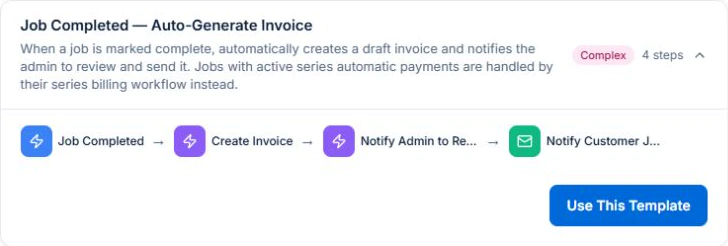
With permission to manage workflows, open Templates and choose Job Completed — Auto-Generate Invoice. Review the Job Completed trigger and Create Invoice action. Check that the owner notification points to the draft for review.
Review the separate customer completion email before activating the workflow. You can switch it off in Easy Mode. The draft uses billable actuals for time-and-materials work or the remaining contract balance for a fixed-price final claim. Jobs with active series automatic payments use their series billing workflow.
Concept
A preset supplies connected steps and field mappings to review.
Advantage
Starting with the current preset avoids recreating the process from an incomplete blank-canvas recipe.
Job → billing, time and materials
Check what this job should bill
For time-and-materials work, review billable time, materials, charges and any previously invoiced work. Missing records do not become complete because a workflow runs.
For fixed-price work, check the agreed contract, approved variations and remaining amount to invoice. Do not replace the fixed price with a sum of hours and materials. Jobs with active series automatic payments are handled by their series billing process instead.
Concept
The job’s billing basis determines how the draft is built.
Advantage
The invoice follows the customer agreement rather than a generic copy of the job description.
Create Invoice → Notify Admin to Review
Inspect draft creation and the owner task
Keep the preset’s Create Invoice action that converts the completed job. The owner notification links to the resulting invoice for review.
Open the draft and check customer, invoice lines, GST, amounts already billed and the total. Issue and send the invoice through the normal invoice workflow after approval.
Concept
Creating a draft and delivering an invoice are separate stages.
Advantage
Someone can check the billing before the customer receives it.
Notify Customer Job Complete
Review the completion notice separately
The preset’s customer email confirms that the work is complete and says an invoice will follow. Check the customer email, business name and wording.
This message is not the invoice and does not establish that payment is due on an unissued draft. Adapt it to the timing you can honour.
Concept
The completion notice describes work status, while invoice delivery follows review.
Advantage
Customer communication matches the actual state of the paperwork.
Workflow test and execution history
Test the outcome before activating
Use a controlled test customer and completed sample job. Inspect the draft and notification rather than assuming a successful trigger means correct billing. The completion action can send a real email.
Check a time-and-materials job, a fixed-price job, repeated completion and a visit with active series billing. Confirm that the relevant billing process does not create a duplicate invoice.
Concept
Check the selected records, action results and failures, then assign an owner to review future runs.
Advantage
Resolve test failures before enabling the workflow for customer work.
Bring completed work to the billing owner’s attention, then check and issue the draft invoice.
Review failures and keep the billing owner clear, particularly when job scope or recurring billing arrangements change.
Try it in Axiom Blue
Inspect draft creation before enabling it
Explore the workflow, then configure it for your business on Professional. Free covers limited core jobs, quotes and invoices.