
Reuse your catalogue
Keep product descriptions, services and prices ready for quotes and jobs.
Inventory & materials / AxiomBlue
Record materials against the job and review the stock movement for tracked items. Use the catalogue and reorder levels to decide what to buy before the next job.
Keep product descriptions, services and prices ready for quotes and jobs.
Plan fit: Products and services are included in Basic. Check stock-control permissions and enabled features for your business; paid-plan and record limits vary. Compare plans →
A practical workflow / Example
The demo Products & Services screen separates items, transactions and stocktakes. Open the item first to check whether the business tracks it as stock.
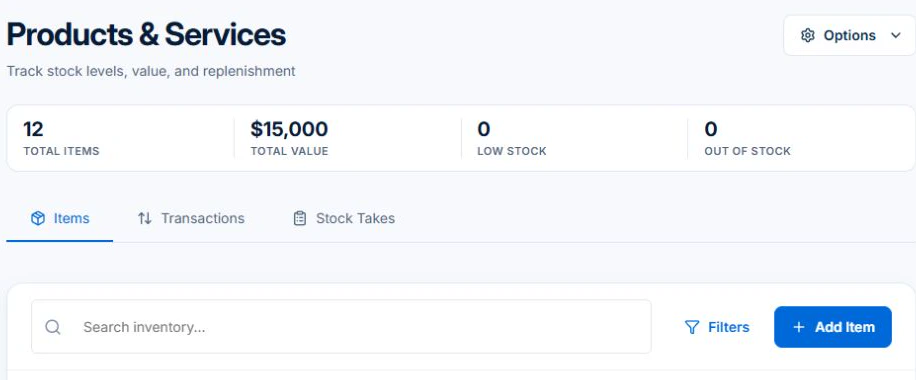
When automatic stock deduction is enabled, recording a stock-tracked item on a job can create a stock movement. Check Transactions before reordering. Use the Assets register for tools that come back from site.
Use a catalogue item when quoting or recording job usage. Check the quantity and the movement for an item you track in stock. This gives purchasing a record to compare with the physical count.
Review tracked levels and reorder settings after job usage and deliveries are recorded. Investigate a discrepancy before placing another order, and check invoice eligibility separately before charging the customer.
Keep product descriptions, services and prices ready for quotes and jobs.
Review adjustments, stocktakes and the movements that explain a stock balance.
Record materials against a job; stock-tracked items can be deducted as usage is recorded.
Picture it in your business / Example
Record the material on the job, review its stock movement and check the reorder level. Keep the job record and stock record aligned.
A practical starting point
Check whether it is a service or stock-tracked product.
Use the job material record or the appropriate stock adjustment.
Check balances, stocktakes and reorder levels.
Know what’s included
Products and services are included in Basic. Check stock-control permissions and enabled features for your business; paid-plan and record limits vary.
Compare plans, limits and pricing →Check the workflow in detail
Explore the detail
Availability varies with plan, permissions and enabled features. Check plan inclusions.
See how this fits: protect your margin →Before you get started
Have a specific workflow in mind? Talk it through with us.
Inventory → Products & Services. Available controls depend on your permissions and enabled features.
Products and services are included in Basic. Check stock-control permissions and enabled features for your business; paid-plan and record limits vary.
Try a familiar job, check the records and confirm the plan inclusions your team needs.
Keep the work connected
Considering a switch?
Use a familiar job to compare the way you work today with the way Axiom Blue handles it.
Check the quote, schedule, job record and invoice. Look for the details your team needs.
Compare usage limits, paid seats and specialist features. See plans and pricing →
Try your own quote on the free plan. Before moving existing records, ask us about your data and setup needs.
Make the next step a small one
You know where the friction is in your business. Open the demo and see how AxiomBlue handles it. Then start with your own quote on the free plan.
Free forever for one person. No credit card. Usage limits apply.
Try a quote like one you send every week. Check the detail your customer will see.
Explore a job, its crew, time and materials. Look for the information you usually chase.
Compare the features and limits you need. See plans and inclusions →