
Move one booking in the trial
Pick a real disruption such as lost access or a wet day. In Crew Calendar, preview the new date and worker for the affected jobs. Check travel, existing commitments and anything still unscheduled.
Compare the proposed day with the one you promised
Ask the dispatcher to identify who must be contacted and which crew can still complete the day. Confirm changes only when the revised bookings make sense.
Key facts
| Assisted planning | AxiomBlue proposes assignments using recorded job duration, bookings, working hours and travel. |
|---|---|
| Crew fit | Professional adds managed crews, recorded skills and approved leave. |
| Your control | Review proposed people, times, warnings and unplaced jobs before applying Auto Schedule. |
| Changed days | Preview a day reschedule, apply it and check the result; an undo option is available. |
| Access | Free and Basic schedule individuals. Free usage limits apply; managed crews and recurring job series require Professional. |
Read the proposed moves before applying a change
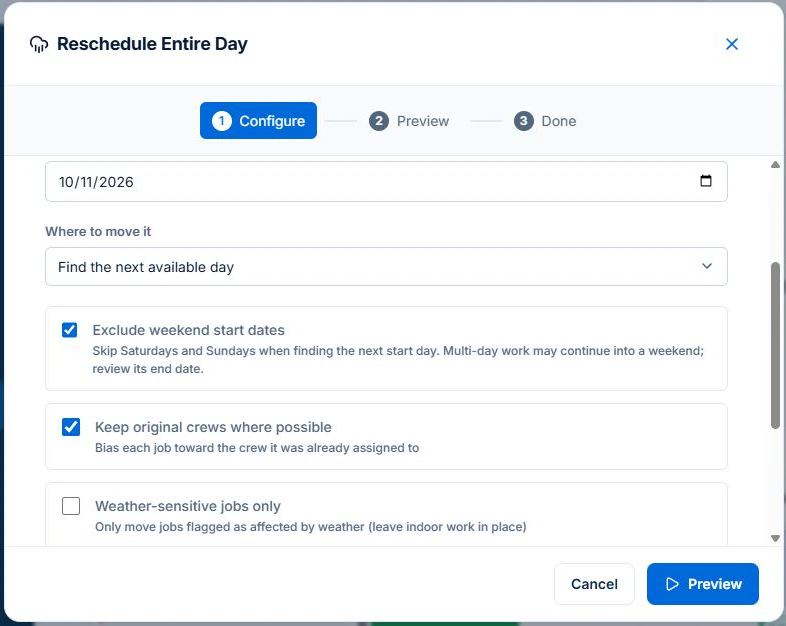
From Crew Calendar, open Options and choose Reschedule Day. Set the day to clear and choose a target day or the next available day. Set whether to keep original crews where possible and whether to include only weather-sensitive jobs.
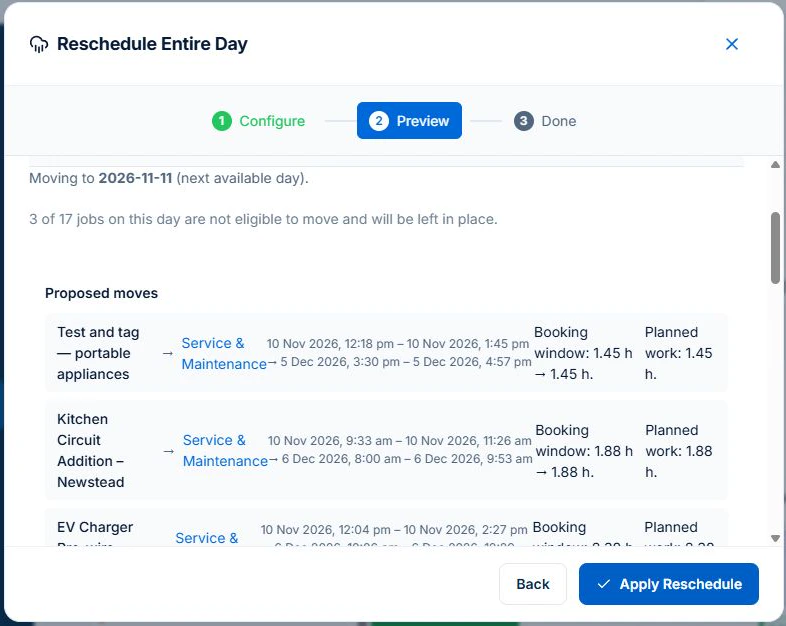
Review the preview line by line. In the demo, the summary shows 11 November as the next available day, while the first proposed move is dated 5 December. Check each job’s actual proposed time, what cannot move and which bookings the team needs to confirm.
Test who should do the work, as well as when
Use three familiar jobs: an installation, a short service visit and a repair with a required skill. Record their locations and realistic durations, alongside the team’s bookings and working hours.
Look for proposed assignments that account for people, job duration and travel, with clear warnings for work that cannot fit.
Inspect the inputs and the proposed plan
In AxiomBlue, Auto Schedule considers job duration, existing bookings, working hours and travel. On Professional, crew membership, recorded skills and approved leave also shape the proposal.
Review the proposed assignments, travel, warnings and unplaced work. Apply the proposed schedule when it fits, and review a fresh proposal if the day or availability changes. The system does not keep reallocating work unattended.
Recorded skills help match the work. Keep qualifications and other job requirements current; a recorded skill is not independent validation of a licence.
Put a rain delay and an overrun through the same test
Open Reschedule Entire Day, choose the affected date and a specific new day or the next available date. Set whether to keep the original crews where possible and check the weekend start-date option. Review the actual dates in the preview.
For a rain delay, choose jobs already marked weather-sensitive. Check the proposed moves, warnings and jobs that will stay in place. If you apply the preview, check the actual result and review whether Undo is available.
An overrun or urgent call-out also needs a person to check the affected customer commitments and the rest of the day. Keep realistic durations and enough flexibility for the work your business usually encounters.
Check how the revised booking reaches people
Check the revised job in the AxiomBlue app and agree a process for confirming changes with the team. Each person can subscribe to their jobs in an external calendar, but that calendar refreshes on its own schedule.
Configure a Professional Job Rescheduled workflow with the right recipients, wording and conditions. Preview the recipients and message in Test before enabling customer updates. Check delivery after a controlled active run. SMS uses purchased credits.
Compare the plan your scheduling process needs
Free and Basic support individual scheduling and reviewed assisted assignments. Free has one user and usage limits; Basic adds capacity and uploads.
Professional adds managed crews, skills, approved leave and recurring job series. Compare the whole-team subscription and the features your test requires; do not treat a first-seat price as the bill for every user.
Use the demo for crew planning, or Free for your own jobs
Inspect a schedule proposal and a changed day in the live demo. For your own limited one-user core workflow, start free. Use the required plan when testing several people, managed crews or recurring work.
- Choose realistic job durations and locations.
- Check suitability, availability and travel in the proposal.
- Review warnings and any unplaced work.
- Apply a reviewed plan, then check a changed day.
- Confirm how the team and customers receive revised arrangements.
Make it useful today
Print or keep a working copy.
Each resource includes a blank worksheet and an illustrative example. Open it to print, or download an HTML copy to keep. No signup needed.
Common questions
Questions people ask before they switch
What is job scheduling software?
Job scheduling software keeps the customer, site, work and assigned person with the booking. Axiom Blue supports day, week and month calendar views and reviewed assisted schedules. Free and Basic schedule people individually; managed crews, skills and leave require Professional.
How do I reschedule a whole day when it rains?
In AxiomBlue, use Reschedule Day to preview eligible jobs for a selected day. Choose a target date or the next available day. For rain, filter to jobs marked weather-sensitive. Review each proposed date and jobs left in place before applying. Check whether Undo is available in the result.
Does the customer get told when their job is moved?
On Professional, an active Job Rescheduled workflow can email or text the customer after a booking moves. Check the conditions, contact details and delivery setup. Texts use prepaid SMS credits. On every plan, the job’s tracking link shows the current booked time.
Can customers see when the crew will arrive?
Yes. When the crew taps On my way in the Axiom Blue app, the job’s tracking link shows an arrival time worked out from the drive, or from the booked start if the phone is not sharing its location. Running late updates it. The link opens in any browser with no login. It shows the arrival time, not where the vehicle is.
Can my crew see their jobs in Google Calendar or Outlook?
Yes. Each person can add a private subscribe link to Google Calendar, Outlook or Apple Calendar, and their Axiom Blue jobs appear there, from a fortnight back to six months ahead, showing anything from the job number alone to the full customer details, as each person chooses. Subscribed calendars refresh on their own schedule, so the Axiom Blue app is always the most current view.
Is there free job scheduling software?
AxiomBlue Free supports one user and up to 10 jobs a week, with individual scheduling and reviewed assisted assignments. Basic adds capacity and uploads. Managed crews, skills, approved leave and recurring job series require Professional. Check current pricing and usage limits before choosing.
What is the difference between job scheduling and job allocation?
Allocation chooses suitable people for the work; scheduling places it at a time and helps review changes. Axiom Blue provides individual calendar scheduling and reviewed assisted assignments on Free and Basic. Professional adds managed crews, skills and leave. The scheduler does not keep reallocating jobs unattended.
Put it to work
Your practical checklist
- Use Free within its limits for individual scheduling; use Professional or inspect the demo for crews, skills, leave, repeat work and automated customer messages.
- Put tomorrow’s jobs on the Crew Calendar by dragging them from Unassigned.
- Mark eligible outdoor jobs weather-sensitive, then preview a Reschedule Day and check the proposed moves and jobs left in place.
- Send one customer a tracking link and tap On my way from the app on the way there.
- Add your own subscribe link to your phone’s calendar.
- On Professional, switch on Job Rescheduled and move one test job to see the message.
See the records in Axiom Blue
Try the workflow with a familiar job.
Features and usage limits vary by plan. Review the tools relevant to your process before choosing your setup.