
Build the colour schedule from accepted scope
Identify each room and surface separately. Enter the colour, finish and number of coats in the Colour Schedule, then check the entries against the customer’s agreement.
Handle a change at the right surface
If the customer changes a finish, verify the approval and update the applicable room and surface. Have the next painter confirm the selection before opening the tin.
Match one room’s colour schedule to the accepted quote
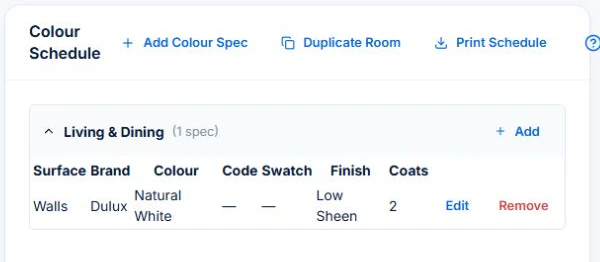
Open the job for the correct customer and site. Where the painting feature is enabled and your role has access, choose Add Colour Spec in Colour Schedule. In the sample, the Living & Dining walls use Natural White, Low Sheen and two coats, checked against the accepted wall line.
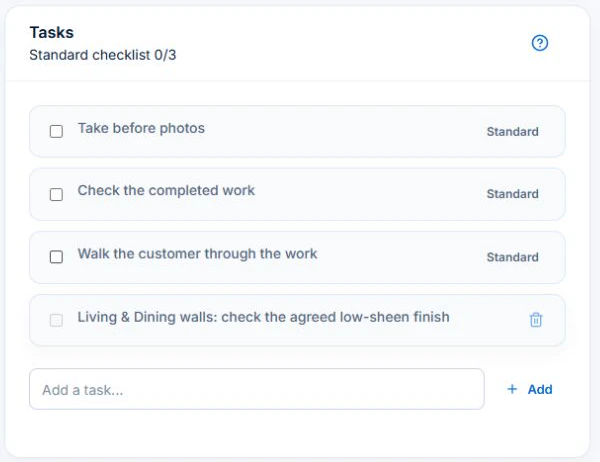
Keep the customer’s approval with the quote or job. Record preparation and any instruction the assigned painter needs in Description or Tasks, then check what that account can see. Photo and document uploads start on Basic.
Identify the area before recording the finish
Use room or area names and specify which surfaces are included. Retain preparation assumptions and exclusions. A whole-property note should not imply that every wall, ceiling or trim was included in the price. Confirm who selects the finish and who approves any commercial change.
Retain the selected version and the approval
Record the colour and product reference and who approved the relevant selection. Keep earlier options distinguishable from the accepted one. In AxiomBlue, check the colour-specification tools, permissions and actual field view you need. A stored selection does not replace product instructions or a site readiness check.
- Room or area and included surfaces
- Preparation scope and exclusions
- Accepted colour and product reference
- Selection and extra-work approval contact
- Access, completed work and outstanding task
Test a room change with another painter
Illustrative case: one room’s colour is changed before work and a hallway is added. The next painter should identify the accepted room selection and the separately approved hallway scope. Record any unfinished area and confirm its return arrangement rather than marking the whole property done.
Make the next visit usable from the field account
Keep lasting site detail separate from today’s scope and unresolved tasks. In AxiomBlue, the separate customer-site notes field is available in the web app; put the instructions needed by a native-app worker in the job description or tasks. Verify access from the worker’s account. Uploads need Basic or Professional; Free has customer and usage limits.
Restrict sensitive access information and share only what the person needs. Check current details with the customer instead of carrying an old instruction into every future job. Professional adds crew management and recurring job series where those suit the work.
Sources: Protect customer information
Common questions
Questions about this process
Is a colour name enough for the crew handover?
Record the relevant surface, product reference and accepted selection as well. Keep earlier options distinguishable and confirm the current scope and product instructions.
Put it to work
Your practical checklist
- Name areas and included surfaces.
- Retain preparation and finish assumptions.
- Identify the accepted selection and approval.
- Keep extra areas commercially clear.
- Give the next painter current tasks and access.
See the records in Axiom Blue
Try the workflow with a familiar job.
Features and usage limits vary by plan. Review the tools relevant to your process before choosing your setup.