
Quote one room all the way through
Give each shortlisted system the same wall area, preparation allowance and finish. Review what the customer sees and what reaches the painter after acceptance.
Change one finish on site
Record the requested change and approval, then check whether the second painter can identify the new instruction. Ask the office to explain the effect on the invoice from the job record.
Check what the painter can read from the accepted scope
Open the accepted quote and read one room’s lines. The sample Living & Dining section separates the walls and ceiling and records a different finish for each. Choose Convert, then Convert to Job and confirm, or select Go to Job if it is already linked.
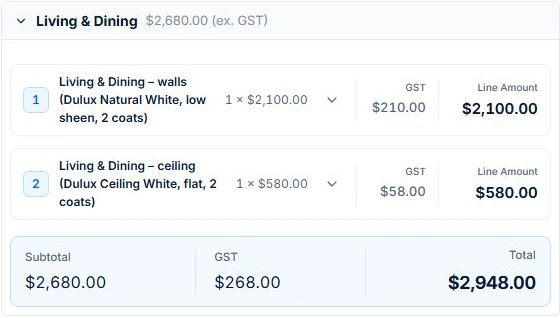
Put the agreed preparation and finish in the job’s Description or Tasks and check the assigned painter can read them. If a customer adds a hallway, keep the request separate from the agreed scope and test the approval before billing it. Variation approvals require Professional.
Quote the preparation, not just the room name
Illustrative test: price two rooms with specified surfaces, repairs, protection and coating scope. Keep the assumptions visible in the accepted quote. Add a hallway after acceptance and check whether the price and time change has a clear approval record rather than simply replacing the original scope.
For a real starting example, inspect the painting contractor software overview and its accepted Prestige repaint quote. Compare separate wall and ceiling descriptions, the paint supply allowance and the full total, then run your own preparation and added-room test rather than treating sample prices as recommended rates.
Give the crew the approved finish
From a worker account, find the current colour, product reference, surfaces and exclusions. Test access to supporting files and quote preparation labour alongside the material estimate.
Follow the painting client and site record workflow to identify the room and surface, retain the current colour approval and test the handover with another painter.
Change access during the multi-day job
Move a day when a room is unavailable and review affected assignments. Record labour and materials, then compare the bill with the accepted price and approved hallway addition. Check work conditions against the product instructions.
Price the roles and required plan, then check the handover
Ask each shortlisted vendor for the plan and total cost for your actual office and field users, workload, billing interval and devices. Include tax basis, optional messaging, payment charges, training and exports. Keep a written result for each test: worked, needs a manual step, or unavailable. A feature-list tick is not a completed test.
AxiomBlue’s Free plan supports one user within usage limits and has no uploads. Basic adds uploads; Professional adds crew skills and leave, recurring job series, variations and project tools. Check the current pricing page for the team total. Try a required Professional process in the demo and confirm access before choosing a plan.
Common questions
Questions about this process
Does an estimating calculator cover the whole painting quote?
Check its scope. Quantities are useful, but preparation, access, protection, labour and the agreed finish still need their own estimate and review.
Put it to work
Your practical checklist
- Use preparation and surfaces in the quote.
- Find the approved finish from the field account.
- Test an unavailable room and changed day.
- Record an extra area without losing the original scope.
- Confirm specialist tools and the total team plan.
See the records in Axiom Blue
Try the workflow with a familiar job.
Features and usage limits vary by plan. Review the tools relevant to your process before choosing your setup.