
Ask for the right detail
Create fields with useful labels and help text for the record.
Custom fields / AxiomBlue
If the office keeps getting calls about site access, give that detail a field on the job. AxiomBlue Professional lets you choose the record and field type so the team knows where to find the answer.
Create fields with useful labels and help text for the record.
Plan fit: Defining custom fields requires Professional. Field access and display also depend on the record and user permissions. Compare plans →
A practical workflow / Example
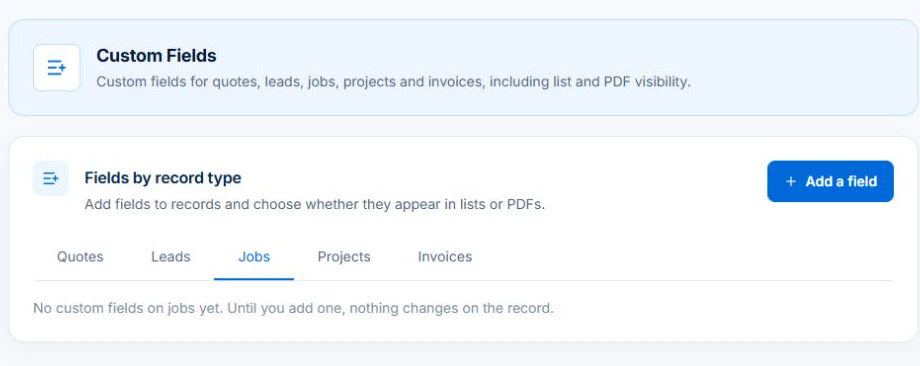
The demo’s Custom Fields screen has separate tabs for Quotes, Leads, Jobs, Projects and Invoices. Choose Jobs when the team needs the detail on the job record.
Decide whether new records should require the field and whether to offer it as a list column. For a supported PDF, enable the merge field, add it to the template and preview the result.
A site access instruction belongs where the crew will open the job. A detail used to assess a lead belongs on the lead. Choose the record and field type to suit the person who uses the answer.
Add it to a sample record on Professional, enter a representative value and check the view the next person uses. Confirm where the field appears before relying on it across a whole team.
Use a site access detail your team often chases. Enter it once on a sample job and have a worker find it from their usual screen. That tells you whether the chosen record type works for the person who needs the answer.
Create fields with useful labels and help text for the record.
Choose text, number, date, currency, choices, yes/no or record references.
Use required fields and appropriate layout so the team captures the detail in the same place.
Picture it in your business / Example
Add a labelled job field and supporting help text. Give the team a consistent place for the reference rather than burying it in a long description.
A practical starting point
Select leads, quotes, jobs, projects or invoices.
Set its label, type, options and requirements.
Review how the field appears and how the team will use it.
Know what’s included
Defining custom fields requires Professional. Field access and display also depend on the record and user permissions.
Compare plans, limits and pricing →Check the workflow in detail
Explore the detail
Availability varies with plan, permissions and enabled features. Check plan inclusions.
See how this fits: make it work your way →Before you get started
Have a specific workflow in mind? Talk it through with us.
Business Settings → Custom Fields. Available controls depend on your permissions and enabled features.
Defining custom fields requires Professional. Field access and display also depend on the record and user permissions.
Try a familiar job, check the records and confirm the plan inclusions your team needs.
Keep the work connected
Considering a switch?
Use a familiar job to compare the way you work today with the way Axiom Blue handles it.
Check the quote, schedule, job record and invoice. Look for the details your team needs.
Compare usage limits, paid seats and specialist features. See plans and pricing →
Try your own quote on the free plan. Before moving existing records, ask us about your data and setup needs.
Make the next step a small one
You know where the friction is in your business. Open the demo and see how AxiomBlue handles it. Then start with your own quote on the free plan.
Free forever for one person. No credit card. Usage limits apply.
Try a quote like one you send every week. Check the detail your customer will see.
Explore a job, its crew, time and materials. Look for the information you usually chase.
Compare the features and limits you need. See plans and inclusions →