Professional · Inventory Automation
How Do I Get Low-Stock Alerts Automatically?
Nobody notices the shelf is empty until a job needs what was on it. AxiomBlue's three inventory automation templates check stock daily, deduct materials as crews log them on jobs, and update counts when orders arrive — so the running-out happens on a notification, not on site.
Quick answerInventory automation gets you low-stock alerts by automatically checking stock against a reorder point you set, instead of relying on someone noticing the shelf. AxiomBlue ships three templates — a daily low-stock check that notifies owners, auto-deduction when materials are logged on jobs, and stock updates when orders arrive — on its Professional plan ($59 AUD per seat per month); the platform starts at $29 AUD with a free plan that has no time limit.
Key facts: inventory automation in AxiomBlue
The checkable essentials up front. Everything in this table is expanded on this page.
| The templates | Low Stock Alert · Inventory Used on Job — Auto-Deduct Stock · Inventory Received — Update Stock and Notify |
| Low-stock check | Runs daily; flags every item below its reorder point |
| How alerts arrive | In-app notification to owners; the item is also tagged in the stock list |
| Stock out | Deducted automatically when materials are logged on a job, with an immediate reorder-point check |
| Stock in | Counts increment when a purchase order is received; owners notified |
| What it does not do | No auto-reordering, no demand forecasting — you stay in charge of purchasing |
| Plan | Automation is on Professional, $59 AUD per seat/month; platform from $29 (Basic) |
| Free plan | No time limit, no credit card required |
How do I get low-stock alerts automatically?
You set a reorder point on each item and let a scheduled automation do the daily checking. AxiomBlue's Low Stock Alert template sweeps your inventory once a day, finds every item that has fallen below its reorder point, sends the business owners an in-app notification listing what it found, and tags each flagged item so it stands out in the stock list until it's dealt with.
The tag matters more than it sounds. A notification is a moment; on a busy morning it gets read at a red light and forgotten by the merge. The tag persists — open the inventory list any time that week and the short items are still visibly marked. The alert tells you the day something ran low; the tag keeps telling you until you order more.
Note what this is and isn't: it's a threshold check against numbers you control, not demand forecasting. AxiomBlue doesn't guess how many fittings next month needs — it tells you, reliably and daily, when you've dropped below the level you decided was your ordering trigger. For a trade business, that's usually the whole problem: not knowing what to order, but noticing in time.
How does stock stay accurate without weekly stocktakes?
By updating the count at the two moments stock actually changes: when materials go onto a job, and when an order arrives. The daily alert is only as good as the numbers it checks, so the other two templates keep those numbers moving with the work.
The Inventory Used on Job — Auto-Deduct Stock template fires the moment a crew member logs a material against a job — something they're already doing so the material lands on the job's costing and invoice. The automation deducts the logged quantity from stock and immediately checks the item's reorder point; if the deduction just pushed it low, the owners get notified on the spot rather than waiting for the next daily sweep. The crew never does an "inventory task" at all. Logging the material on the job, from the phone, is the whole interaction.
That's the quiet win of putting inventory inside job management software instead of in a separate stock app: the deduction is a side effect of a step that already had to happen for billing. Nobody keeps a second system honest, because there is no second system.
What happens when an order arrives?
Receiving the purchase order in AxiomBlue updates the stock by itself. The Inventory Received — Update Stock and Notify template fires when a purchase order is marked received, reads the order's lines, increments the stock count for each delivered item, and notifies the owners that the goods are in.
That closes the loop. Stock goes down automatically as jobs consume it, the daily check flags what's short, a human orders more, and the arrival tops the counts back up without anyone typing quantities off a packing slip. Each of the three templates is small on its own; together they mean the number next to every item is believable — which is the only thing anyone actually wants from an inventory system.
How does the low-stock automation run, step by step?
In plain words, one full day of the flagship template looks like this:
- Trigger: a schedule. The Low Stock Alert runs on a daily timer — no event needed, no one pressing anything.
- Find: a query sweeps the inventory for every item whose count has fallen below its reorder point. No low items, and the run simply ends — silence means stock is fine.
- Notify: the owners get an in-app notification listing the short items.
- Tag: each flagged item is tagged in the stock list, so it stays visible after the notification scrolls past.
The auto-deduct template follows the same check-then-act shape from a different trigger: material logged on a job → deduct the quantity → check the reorder point → notify only if it's now low. And the receiving template: purchase order received → read the lines → increment the counts → notify the owners. Every step is visible on the canvas, which is why the next question has a short answer.
Can I change the thresholds, timing, or messages?
Yes. Reorder points live on the items, so a bulk consumable and a two-on-the-shelf specialty part each get their own sensible trigger level. The templates themselves are ordinary workflows in AxiomBlue's visual automation editor, assembled from drag-and-drop trigger, condition, and action nodes — open one on the canvas and change the schedule, reword the notification, or add a step. No code, no formulas.
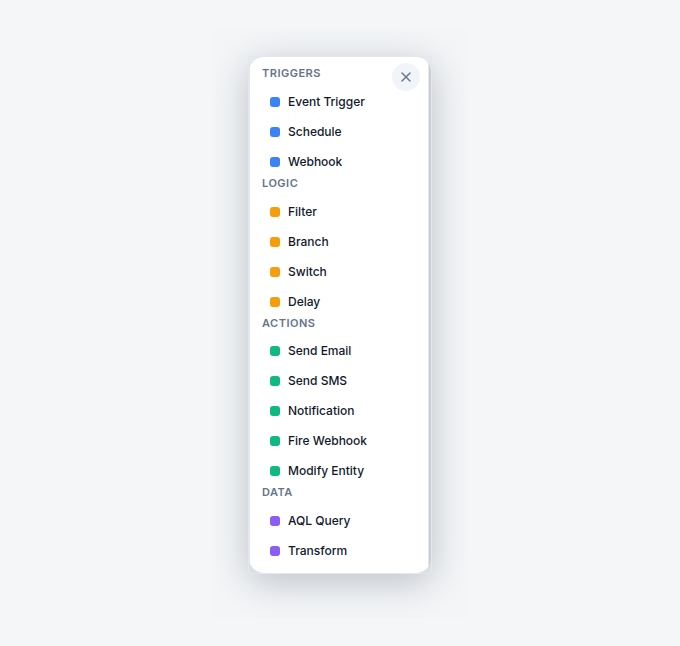
Because the templates are transparent, extending them is a matter of looking rather than asking. Want the low-stock notification to go out on Mondays only, or a different follow-up for one category of items? Open the template, see the four steps it's made of, and adjust them — the same way every one of AxiomBlue's 30+ automation templates works.
Does it reorder stock for me?
No — and for a small business that's the right call. AxiomBlue's inventory automation alerts and deducts; it does not raise purchase orders on its own, pick suppliers, or forecast demand. A human decides what to buy, from whom, and when. The automation's job is narrower and more valuable: making sure that decision gets made before the shelf is empty instead of after a crew has driven back from site for a part.
Fully automatic reordering sounds appealing until the first time a system orders forty of something because a stocktake correction looked like a consumption spike. Trade suppliers have account pricing, substitutions, and delivery quirks that a rule can't weigh up. So the honest division of labour is: the software never forgets to check, and you never stop deciding.
What changes compared to the spreadsheet and the Friday walk-around?
The difference is who does the noticing. A spreadsheet is accurate on the day of the stocktake and drifts from the moment the next job starts; the automation moves the count with every job and checks it every day. Here is the honest three-way comparison.
| Spreadsheet + walk-around | AxiomBlue inventory automation Job-linked stock | Standalone inventory app | |
|---|---|---|---|
| Who notices low stock | ✗ Whoever opens the cupboard | ✓ A daily automated check | ~ Alerts, if counts are maintained |
| How counts stay current | ✗ Periodic stocktakes | ✓ Deducted as materials are logged on jobs | ✗ Someone keys usage in separately |
| Materials reach job costing | ✗ Separate exercise | ✓ Same log feeds costing, invoice, and stock | ✗ Different system to the jobs |
| Goods received | ✗ Typed off the packing slip, eventually | ✓ PO received updates counts and notifies | ~ Manual receipt entry |
| Persistent flag on short items | ✗ A mental note | ✓ Items tagged until dealt with | ~ Varies by app |
| Extra work for the crew | ✗ Counting on Fridays | ✓ None — logging materials on the job is the input | ✗ A second app to keep honest |
A standalone inventory app can hold accurate counts — if someone feeds it. The structural advantage of doing this inside AxiomBlue is that the feeding already happens: crews log materials on jobs because that's how the job gets costed and invoiced, and the stock movement rides along for free.
What does inventory automation cost in Australia?
The three inventory templates are part of AxiomBlue's automation engine, included on the Professional plan at $59 AUD per seat per month; AxiomBlue itself starts at $29 AUD per seat per month on Basic. There is a free plan with no time limit, and no credit card is required to start.
Price it against a stock-out, not against other software. One missing part means a return trip to the supplier — an hour of paid time plus the truck — or a rescheduled job and a customer who now doubts the next booking too. If the daily check prevents a couple of those a month, it has covered the plan difference before you've thought about the admin hours the Friday walk-around used to eat. The free plan is the test: load your twenty most job-stopping items, set reorder points, and see what the first fortnight of alerts catches.
Inventory Automation — Common Questions
Set a reorder point on each item and let a scheduled automation do the checking. AxiomBlue's Low Stock Alert template runs a daily check across your inventory, finds every item that has fallen below its reorder point, sends the owners an in-app notification, and tags the item so it stands out in the stock list until it is dealt with.
As an in-app notification to the business owners, listing what the daily check found. The flagged items are also tagged in the inventory list itself, so even if the notification is dismissed on a busy morning, the low-stock items stay visibly marked until someone orders more or adjusts the item.
No, and that is deliberate. AxiomBlue alerts you and keeps counts accurate - it does not raise purchase orders on its own or forecast demand. A human decides what to buy, from which supplier, and when; the automation's job is to make sure that decision happens before the shelf is empty instead of after.
Because the two events that change stock update it automatically. When a crew member logs materials on a job, AxiomBlue's auto-deduct template takes them out of stock and checks the reorder point immediately. When a purchase order is received, another template adds the delivered quantities back in and notifies the owners. The count moves with the work.
Yes. Reorder points are set per item, so a box-of-hundreds consumable and a two-on-the-shelf part each get sensible thresholds, and the templates themselves are ordinary workflows in AxiomBlue's visual editor - you can change the schedule, the notification, or add steps by dragging nodes on a canvas. No code required.
The three inventory templates are part of AxiomBlue's automation engine, included on the Professional plan at $59 AUD per seat per month. AxiomBlue itself starts at $29 AUD per seat per month on the Basic plan, and there is a free plan with no time limit and no credit card required to start.
Yes. The free native AxiomBlue apps for iPhone and Android let crews log materials against the job from site, and the full platform also runs in any web browser. Logging the material on the job is the same action that fires the auto-deduct automation - there is no separate inventory step for the crew to remember.
The templates themselves switch on in minutes - the real setup is your item list. Enter the items you actually care about running out of, give each a count and a reorder point, and turn the templates on. Most businesses start with the twenty or thirty items that stop jobs when missing, not the whole van.
Find Out Before the Shelf Does
Load your twenty most job-stopping items, set a reorder point on each, and switch the templates on. The first alert that saves a return trip to the supplier pays for the month.
No credit card required • Free plan, no time limit • Cancel anytime