
The useful result
Start with the customer and reporting dates. Run Customer Work, trace anything unexpected to its job, and check the customer copy before exporting it. A useful report makes the recorded work explainable; it does not certify the cleaning standard or establish what the customer owes.
Generate the report for the agreed period
Open Reports → Customer Work with permission to view reports and accounts receivable. Choose the customer and inclusive From and To dates, keep Time and materials and All work selected, then choose Run report. AxiomBlue builds Totals, By Month and an expandable Job Breakdown from that customer’s recorded work.
For a monthly client review, agree the period before comparing numbers. Use the whole completed month for a month-end report. If the month is still running, label the report month-to-date and retain its end date. Changing the date or work filters requires another Run report before you use the result.
The screen below uses Spotless Commercial Cleaning’s public demo records for Level 22 Consulting Group, from 1 to 22 October 2026. It is a month-to-date example with sample records, not a customer result or a full-month forecast.
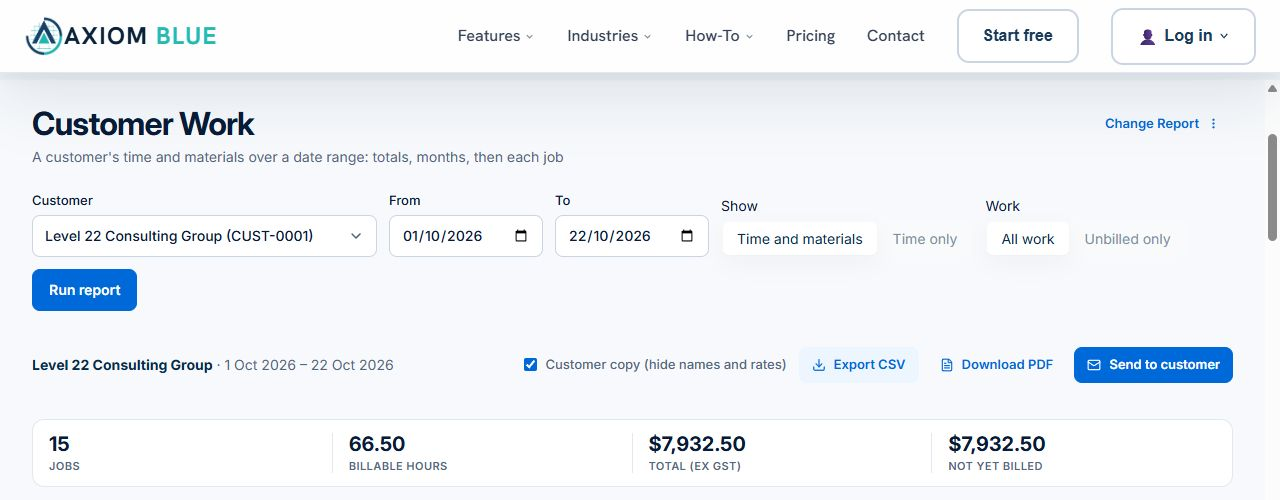
- Check the customer: a report for the wrong account cannot explain the client’s work.
- Set From and To to the dates the client expects, including the year.
- Start with All work so earlier billing does not disappear from the review.
- Choose Run report, then confirm the customer and date range printed above the totals.
Read the example as recorded work, not the next invoice
The captured sample contains 15 jobs, 65.45 hours worked and 66.50 hours marked billable. Worked and billable hours differ because job billing rules can apply minimums or rounding. Check the underlying entries and rules before explaining the difference to a client.
The sample’s $7,932.50 total before GST is made up of $4,322.50 labour, $3,325.00 materials and $285.00 quoted work and variations. Those amounts describe the recorded work’s valuation. They do not establish a new invoice, a payment received or the cleaning contract’s profit.
| Report item | What to check |
|---|---|
| Jobs: 15 | Jobs with included recorded activity; not proof that 15 scheduled visits were delivered or passed inspection. |
| Hours worked: 65.45 hours | Received time records on the included jobs. Missing time is a record gap, not evidence that no cleaning occurred. |
| Billable hours: 66.50 hours | The billing treatment of that recorded time. Check minimums, rounding and the customer agreement. |
| Not yet billed: $7,932.50 | A review prompt. Until a job is invoiced in full, all its time and materials count as not yet billed; earlier partial invoices still need separate reconciliation. |
Trace a surprising total to the job
Open the detail control beside a job in Job Breakdown. Inspect the dates, time entries, materials and any quoted work or variations. Use the job link to review the underlying record if the scope, status or billing history needs investigation.
For example, sample job SCC-J101, Office Deep Clean – CBD Tower, shows 8.40 hours worked and 8.50 billable hours in its customer-copy detail. The detail column is labelled Billed hours, but this job is Not yet billed; the column does not establish that an invoice exists. Its labour amount is $552.50 and its materials total $140.00, giving $692.50 before GST. The material lines are one sanitiser bottle at $75.00 and one cloth pack at $65.00. This is a reproducible sample breakdown, not a suggested cleaning price.
Review the source record when a quantity, date or scope is wrong, then run the report again. Do not change an agreement or invoice merely to make a report total look tidy.
Read next Cleaning client and site records: hand over access, scope and quality checks →
Reconcile missed visits and agreed charges separately
Compare the report with the planned visits and their actual outcomes. Cancelled jobs are excluded, and the report can contain recorded activity on work that is not yet complete. It is not a complete register of planned, missed or cancelled cleans. Check the schedule and job records when the client asks whether every contracted visit occurred.
For a fixed monthly service agreement, use the report to explain recorded work and investigate exceptions. Do not multiply the hours by a rate or add the whole report total to the monthly charge without checking the agreement. Fixed-price labour and materials can appear as Included rather than separate charges.
Review prior invoices and approved extras before deciding the bill. Unbilled only is useful for investigation, but a partly invoiced job can still show all of its labour and materials as not yet billed. A billing indicator also does not establish that an invoice has been sent or paid.
By Month follows the work records’ dates, not the invoice or payment dates. A job can contribute to more than one month. Undated quoted scope can contribute to overall value without appearing in a monthly row, so investigate an apparent mismatch rather than forcing the figures to agree.
Read next Cleaning scheduling software: manage repeat visits → · Cleaning invoicing: reconcile visits, skipped cleans and agreed extras →
Prepare the customer copy and inspect the saved file
Select Customer copy (hide names and rates) after reviewing the report. Customer copy removes worker names and hourly rates from time detail and groups time by day and billable status. It does not hide every amount or every internal detail: job titles, free-text descriptions, material information and amounts can remain. Material unit prices remain visible in the report and PDF.
Use Export CSV for a spreadsheet copy or Download PDF for a document, then open the saved file before sharing it. Check the customer, period, selected content, job descriptions and values. The customer CSV omits the Rate column; that does not make it a document with all prices removed.
Time only suppresses material rows, but it is not a promise of an hours-only document with every monetary value removed. Review the actual output you intend to send.
After correcting records, run the report again and download a fresh copy. PDF generation uses current data, so a previously viewed screen is not an immutable export. Keep the reviewed file with the reporting period and the explanation of any unresolved exception.
If you use Send to customer, AxiomBlue generates a customer-copy PDF. Check the recipient and message and use the required accounts-receivable send permission. The examples in this guide were inspected without sending any customer message.
Common questions
Questions about cleaning work reports
Can the report prove that every contracted clean was completed?
No. Customer Work summarises included recorded work. Check planned visits, job outcomes and the agreed cleaning standard separately; cancelled jobs are excluded and activity on unfinished jobs can be present.
Can I turn Not yet billed into the next invoice amount?
Not without reconciliation. Labour and materials remain not yet billed until their job is invoiced in full, even when there are earlier partial invoices. Review the agreement, prior invoices, fixed-price inclusions and approved extras before deciding a charge.
Put it to work
Your practical checklist
- Confirm Professional access and the permissions to view reports and accounts receivable.
- Choose the customer and agreed reporting period; label an unfinished month month-to-date.
- Run All work and inspect totals, month rows and relevant job detail.
- Check missing visits, the charging agreement and earlier invoices separately.
- Review customer-copy content and open the saved PDF or CSV before sharing.
- Retain the checked file and any explanation the client needs.
See the records in Axiom Blue
Try the customer-period review with sample records
In the live demo, choose Spotless Commercial Cleaning, open Reports → Customer Work and select a customer. Your own business needs Professional and the appropriate report and accounts-receivable permissions for this workflow. Check plans before choosing access.
Product instructions
Published by Axiom Blue. Product controls and sample report checked on 22 October 2026. Screenshots show the responsive web demo with sample records. The figures illustrate report interpretation, not customer results, recommended prices or proof of service quality.