
From recorded time to a better estimate
Open Reports → Crew Throughput, set From and To, then Apply dates. In Completed job performance, check counted and excluded jobs before comparing estimated and actual hours. Select an employee to see the job breakdown and follow a job link to investigate. Use the checked result to review the next comparable estimate; the report does not change it automatically.
Run the completed-job time review in AxiomBlue
Crew Throughput brings estimates and recorded duration into one report. It requires Professional and the relevant report access. Opening or correcting an underlying job also depends on your job permissions.
Use Completed job performance for this review. It selects jobs by completion date, including jobs subsequently invoiced. The separate Scheduled job delivery section uses scheduled dates and answers a different question. The report is business-wide, without an HVAC-unit filter; if you deliver several trades, inspect the relevant jobs rather than treating the company total as HVAC-only.
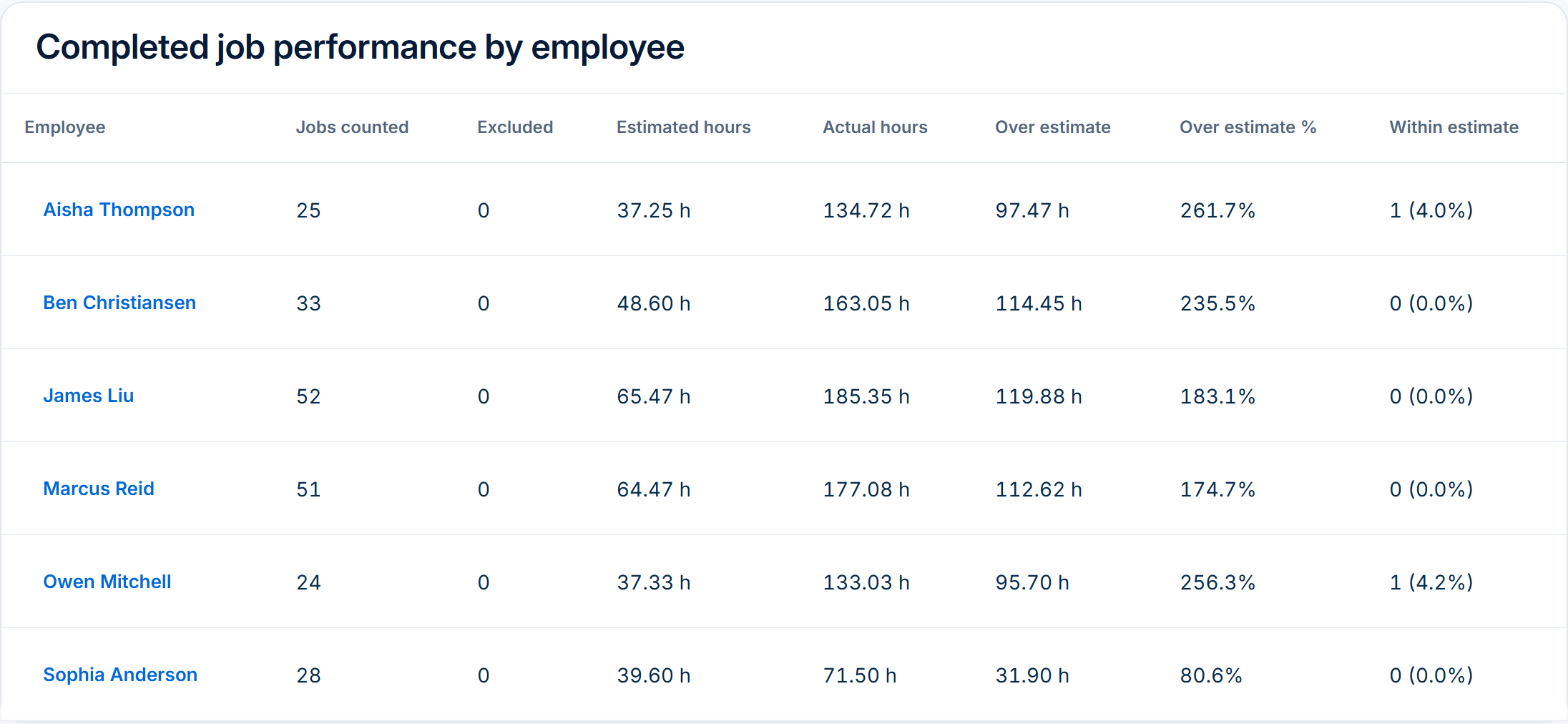
- Open Reports → Crew Throughput, or use Change Report from another report. Choose From and To for the completed work you want to review, then select Apply dates.
- Read the completed, counted and excluded totals. Compare Estimated, Actual and Over estimate for the counted jobs. Resolve missing records before treating that subset as representative.
- Review Completed job performance by crew and by employee. Select an employee to open their job breakdown, then follow a job link to inspect its estimate, time entries and scope.
- Check whether the exception concerns a routine maintenance visit, an installation or return work. Keep job references and the reason for any difference so unlike jobs do not silently become one benchmark.
- Review the next comparable job’s Estimated Duration using the checked work and the expected scope. Keep the reason for the new assumption. Changing an estimate remains your decision; this report does not reprice work or update future jobs.
Sources: AxiomBlue Reports and access requirements · Job Details and duration fields
Two technicians can mean four labour hours and 2.5 hours on site
Illustrative example only, not measured customer results: an HVAC maintenance job has an Estimated Duration of two hours. Technician A records 08:00–10:00 and technician B records 08:30–10:30. Assume both entries are closed, with no breaks or other duration adjustments.
Each technician records two hours, giving four person-hours in total. The merged on-site intervals run from 08:00 to 10:30, so the report’s actual job duration is 2.5 hours. The shared 08:30–10:00 interval counts once in that duration.
Against the two-hour estimate, the duration overrun is 0.5 hours, or 25%: (2.5 − 2) ÷ 2 × 100. Both employees can receive the full job result in their breakdown. Adding those rows would duplicate the job, not reveal four or five hours of elapsed site time.
| Measure | Time |
|---|---|
| Estimate | 2.00 h |
| Actual duration | 2.50 h |
| Person-hours | 4.00 h |
| Over estimate | 0.50 h / 25% |
A period total can hide a job that ran over
The report adds the counted jobs’ estimates and actual durations before calculating the period’s Over estimate figure. Faster jobs can offset slower ones. It is not the sum of every positive job overrun.
Continue the illustrative example with a second job estimated at one hour and completed in half an hour. Together, the two jobs have three estimated hours and three actual hours. The period is therefore zero hours over estimate, even though the first job ran 25% over.
Use the employee job breakdown to find which work was within or over estimate. Keep the service type, unit scope and access conditions beside the finding. One difficult installation should not automatically change the assumed duration of every maintenance visit.
Check exclusions and the completion window before deciding
Jobs without a valid estimate or recorded duration, or with open clock-ins, are excluded from the time-performance figures. They can still appear in the completed total. For example, three completed jobs with one missing estimate leave two counted jobs; a tidy comparison of those two does not establish that all three were within estimate.
Open the job record to resolve missing or incorrect entries with the person who did the work. Keep genuine interruptions and scope changes visible. Correct records because they are wrong, rather than changing history to improve a report result.
A job spanning several days is counted once on its completion day, using its whole recorded job duration. A completion-date report is therefore different from hours worked during the selected dates. Use the relevant time records for a period-based labour review; unfinished installations are not a completed-job result yet.
Sources: Review job time entries
Use the exception to change an assumption, then review the next job
Check the reason before changing the next estimate: was the unit scope different, did access delay the work, was another visit needed, or was the original duration simply too short? Compare work with a similar service scope and team arrangement.
For the next comparable job, review Estimated Duration and retain the assumption behind it. After completion, run the report again for a comparable set of jobs. Values can change when job records are corrected, so keep your review date and job references.
Duration is one input to planning. Review each person’s recorded time and the actual costing basis separately when assessing labour cost, then check materials and agreed revenue. An elapsed-time overrun does not establish a wage amount, a customer surcharge or a net-profit margin. The linked job-cost and invoicing guides cover those next decisions.
Read next Review job costs in AxiomBlue: quote against actual work → · HVAC invoicing software: from service visit to invoice → · HVAC service scheduling: make maintenance and installations fit →
Common questions
Questions about HVAC job-time reviews
Which plan includes the completed-job report?
Crew Throughput is a Professional report and requires the relevant report access. Job drilldown and edits also depend on job permissions. Core job time recording is a separate capability; this guide’s report workflow is not included in Free or Basic.
Can I add employee rows to get total job hours?
Not for the report’s elapsed duration. Employees can share the full result of a job, while company totals count it once. Use individual time entries for person-hours and labour-cost review; use the merged on-site duration to compare with Estimated Duration.
Why can the total show no overrun when one job ran late?
The period compares total estimated and actual duration for counted jobs. A faster job can offset a slower job. Inspect the job breakdown before deciding which estimating assumption needs changing.
Does this report calculate payroll or change my next quote?
No. It supplies completed-job duration and estimate comparisons. Review payroll inputs, costing and customer prices through their appropriate records and processes. You decide whether and how to change the next estimate.
Put it to work
Your practical checklist
- Confirm Professional report access and the relevant job permissions.
- Choose the completion-date window and record the review date.
- Check completed, counted and excluded jobs before using the time figures.
- Investigate a job through the employee breakdown.
- Keep merged site duration separate from technician person-hours.
- Review job-level exceptions even when the period total is within estimate.
- Change the next comparable assumption only after checking scope and records.
See the records in Axiom Blue
Review the job behind the time result.
Explore Crew Throughput in the public demo: set the dates, read the completed-job summary and open an employee’s job breakdown. Sample records demonstrate the report, not measured customer outcomes. This report workflow requires Professional and the relevant access in your own business.
Product instructions
Published by Axiom Blue. The time examples are illustrative; the report workflow was checked against current product source and the public demo on 16 October 2026. It is a job-duration review, not payroll, technical HVAC guidance or a claim of improved profitability.